Unable to render embedded object: File (books.jpg) not found.
Go to documentation repository

Page History
...
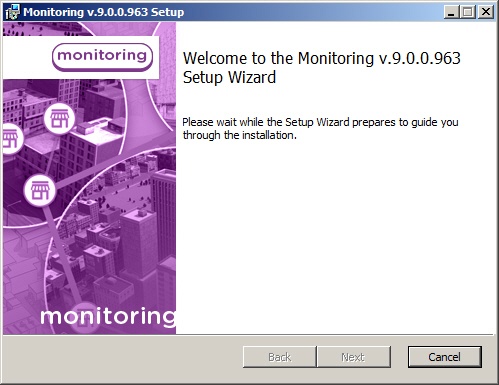
- From the installation kit, start the executable file setupMonitoring.exe. A dialog box appears, informing of the beginning of installation (Fig. 3.4 – 3.4—17).
...
...
- A prompt to start installation then appears (Fig. 3.4 – 3. 4—18). Click the Next button.
...

...
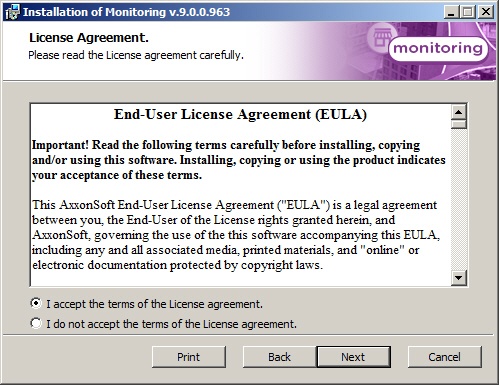
- The License Agreement window presents the terms of the end user license agreement. Select I accept the terms of the License Agreement and click the Next button (Fig. 3.4 – 3.4—19).
...
- On the next screen, select not to install the Control Server. Click the Next button (Fig. 3.4 – 3.4—20).
...

...
Anchor _Ref314932140 _Ref314932140 Anchor _Ref314932164 _Ref314932164 Anchor _Ref314932187 _Ref314932187- A dialog box then appears for configuring the string to connect to the remote Monitoring database (Fig. 3.4 – 3.4—21). Click the Set button.
...

- In the Database connection properties dialog box, select the name of the database server, indicate the name of the database (by default, "MonitorSSTV"), and indicate other connection parameters (Fig. 3.4 – 3.4—22). If a password is used, in the Allow password to be saved dialog box, select the check box.
...

If the parameters have been indicated correctly and the database server is functional, click the Test connection button, after which a message appears: Test connection succeeded
(Fig.
3.4 – 3.4—23).Otherwise, an error message appears.
...

...
Info
...
title
...
Note.
If the English version of MDAC components is installed on the computer, English is used in the dialog boxes
...
as well.
- If the connection string has been properly configured, the message "Connection string determined" appears.
- The installation process is launched (Fig. 3.4 – 3.4—24).
...

...
- When installation is complete, a wizard page appears with a message about successful installation (Fig. 3.4 – 3.4—25). Click the Finish button.
...

Installation of Monitoring Light is complete.
Overview
Content Tools