


Page History
...
- Go to the Stopped vehicle detection control panel.

- Click Settings. The Detection settings window will appear.
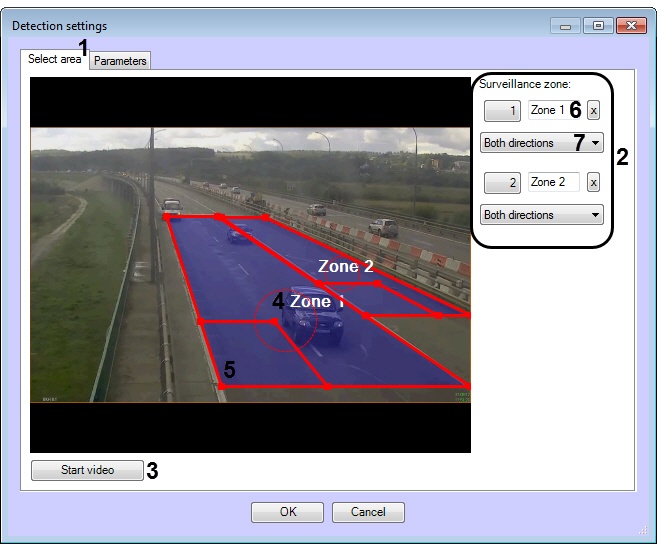
- Configure zones and areas of interest on the Select area tab (1). Several zones can be added (2). Notification is performed on detection tool triggering in any zone.

To add a zone, do the following:- Click Stop video (3) to capture the video image (4).
- Click the left mouse button to add a zone on the captured video image (1).
- Set the required size, shape and position of the analyzed areaszones. To rotate the areazone, use the board dragging. To drag the area zone on the frame use the circle dotted line (5). To change the area zone size, use the grid points marked squares. The minimal height and size of the smallest base of trapezoid is 0.05 of the frame height.
Specify the approximate size of the vehicle by changing the size of the internal areas in the bottom left corner of the main areas zone (16).
Info title Note. The analyzed areas may be zone is automatically covered with not more than 256 detection zonesareas. Recognition of stopped cars is performed only on that part of analyzed area zone which is covered by these zonesdetection areas. The part of analyzed area zone will not be covered by detection zones areas if the car size is much smaller than the size of analyzed area. To control the coverage area of the zone by detection zonesareas, use the debug window (see Appendix 1. Debug window).
- Enter none zone names (27).
- Select the direction of the vehicles moving towards the camera for each zone (38).
- Go to the Parameters tab (1) and set the minimal stop duration in seconds in the Stop duration, s field using the up and down buttons (2).

- Click OK.
...
Overview
Content Tools