
Go to documentation repository
...
 button to display events corresponding to the selected object.
 button near next to the corresponding field to use the Calendar tool.
 button.
As a result the Protocol report with specified parameters is displayed.


A form of the Protocol report with video displaying consists of three parts. Part 1 is equal to the print form of protocol reports without video displaying. Part 2 displays video from the selected camera. Part 3 displays image.
...
| Note | ||
|---|---|---|
| ||
It is impossible to print the form of Protocol report with video displaying. If it is needed to get the pint form of the Protocol report create the report without video, i.e. the Report with video: checkbox should be deselect. |
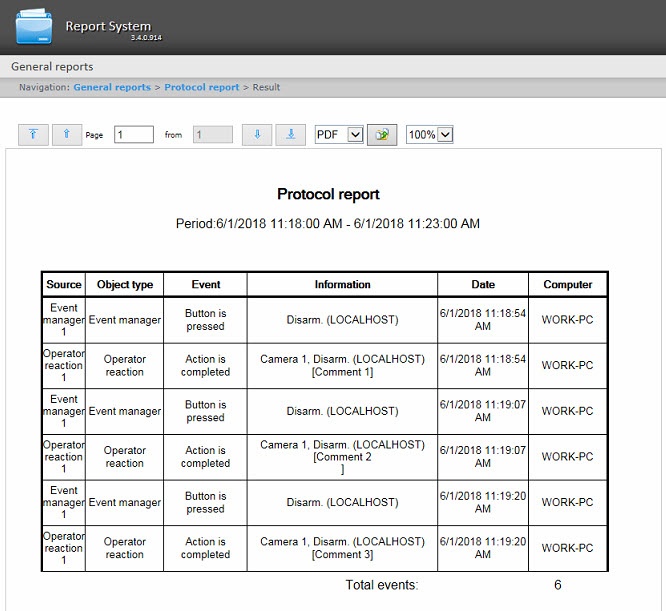
The description of report fields is given in the table.
| Field name | Description |
|---|---|
| Source | Source object of the event Note. The information in this column is received from the objid column of the dbo.PROTOCOL table of the Intellect database |
Object type | Type of source object of the event Note. The information in this column is received from the objtype column of the dbo.PROTOCOL table of the Intellect database |
| Event | Name of the event Note. The information in this column is received from the action column of the dbo.PROTOCOL table of the Intellect database |
| Information | Information on the event Note. The information in this column is received from the param0 column of the dbo.PROTOCOL table of the Intellect database |
| Date | Date and time of the event Note. The information in this column is received from the date column of the dbo.PROTOCOL table of the Intellect database |
| Computer | Name of the computer where the event happens |
| Info | ||
|---|---|---|
| ||
For details about the dbo. |
...
PROTOCOL table, see Base Intellect tables. |
| Info | ||
|---|---|---|
| ||
The operator's comment confirming the event in Event Manager module is specified in square brackets in the Information field (see Example of working with the Event manager module). |
| Note | ||
|---|---|---|
| ||
To create the auto generated protocol report you should select the report without video displaying. |
...

