
Go to documentation repository


Page History
...
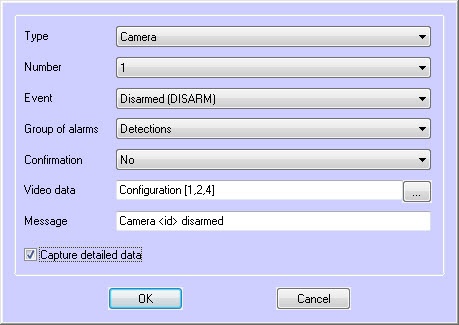
This means that when integrating a new device into Intellect, if a developer wants to be able to send more detailed information to Monitoring, when generating an event from the device, the developer should add detail in the param0<> parameter. For example, if there is a Motherboard Control module that has the Alarm event, the following values could be included in param0<>: "processor cooler", "BIOS battery", etc. If you enter "Motherboard" in the Message field and select Capture detailed data, the following text may appear in the Device column of the Alarm Reaction dialog form: "Motherboard (CPU cooler)".
Example of how to configure the message for the Abandoned Object Detection Tool.

In the example shown with the Abandoned Object Detection Tool, when the detection tool is triggered a indicator corresponding to the Detection Tools alarm group becomes red in the Control Panel.
Click this indicator to view the Alarm Reaction window, which indicates that the Abandoned Object Detection Tool has been triggered.

Similarly, it is possible to monitor messages from other objects created in the Intellect device tree, on the Hardware tab.
Configuration for associating different events with certain alarm groups is now complete.
Overview
Content Tools