
Go to documentation repository


Page History
...
- Go to the Hardware tab in the System settings dialog box (1).
- Create the VMDA metadata storage object on the base of the Computer object in the objects tree. The settings panel for the created object appears in the right part of the Hardware tab (2).
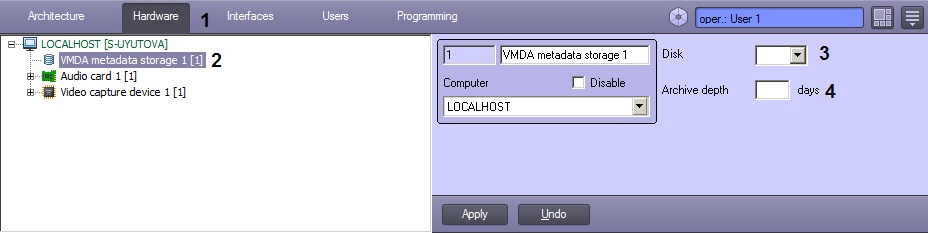
In the Disk drop-down list, select the disk for saving the archive (3).
Info title Note. The archive will be saved on the selected disk in the VMDAfolder. Note title Attention! Storing the data to the VMDA metadata storage may be very computer-intensive. The following actions are to be performed for proper system operation:
1.Create the VMDA metadata storage object on a separate Server.
2.Enable disk caching by means of redundant array of independent disks or OS.- In the Archive depth field, set the time period (in days) of storing the archive (4).
- Select cameras metadata from which is to be saved in a created storage. To do this, follow these steps:
- Create a Search channel object under the VMDA metadata storage object (1). The number of available search channels is determined by the number of cameras in the license key.
Info title Note. If the license key was received earlier than December 2020, the VMDA metadata storage object should be configured as described in the documentation for Intellect 4.10.4, i.e. without creating Search channel objects. After updating the license key, please create and configure the Search channel objects as described below.

- From the Camera drop-down list, select the Camera object (2).
- Create a Search channel object under the VMDA metadata storage object (1). The number of available search channels is determined by the number of cameras in the license key.
- To save the changes, click the Apply button (7).
...
Overview
Content Tools