
Go to documentation repository


Page History
...
- Select an object that is to be edited. Green-pointed frame will appear around the image as a result.
- Call for the Edit object dialog window of the Map editor utility in one of the three ways:
- Perform the command of the main menu Operations with objects -> Edit object;
- Click the
 button on the toolbar;
 - Perform the Edit command of the context menu (is called by right-clicking the object’s image).
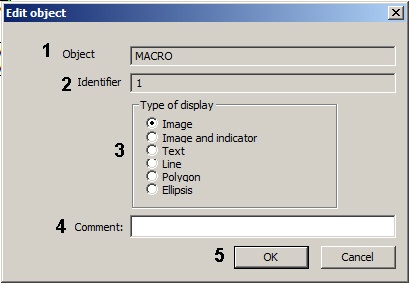
- The type of the selected object is automatically displayed in the Object field (1).
- ID of the selected object is automatically displayed in the Identifier field (2).
If necessary change the type of object’s displaying with the help of the Type of display switch (3).
The switch position
Type of object’s displaying
Note
Image
Schematic object’s image
Basic configuration objects, SCADA objects
Image and indicator
Schematic image and identifier of object’s state
SCADA objects
Text
Object name and text defined on the Properties panel or by script (see Editing object properties using the Properties panel or Examples of scripts in JScript language in the Programming Guide (JScript)).
SCADA objects
Line
Displaying object in the form of a straight line
SCADA objects
Polygon Displaying object in the form of a polygon Basic configuration objects, SCADA objects Ellipsis Displaying object in the form of an ellipisellipsis Basic configuration objects, SCADA objects Info title Note Line object transformed to text will no longer be displayed on the Map, if Text info property is empty (see Editing object properties using the Properties panel).
- If required change object’s additional data in the Comment field (4).
- To save the changes click OK (5).
...
- Select the object the size of which is to be edited. Green-pointed frame will appear around the image as a result.
- Call for the Object’s size dialog window of the Edit map utility by the main menu command Operations with objects > Object’s size.
Specify the size of the image: Width (icon's width) and Height (icon’s height) fields – 1, 2. Icon’s size is expressed in pixels.
Info title Note If 0 value is entered in the fields Width and Height , object’s icon will be displayed in the original size. Click Ok to save the changes (3).
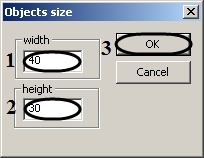
Editing the object’s size is completed.
Editing the position of object
...
You can also change the coordinates, rotation angle and the icon size of the Line, Image, Image and indicator and Text object types using the Properties panel:
- Open the Properties panel for the required object (see Editing object properties using the Properties panel).
- Expand the Position and Size settings group. For the Line icon type, specify the coordinates of the initial point (x0, y0) and end point (x1, y1) of the line in this group.
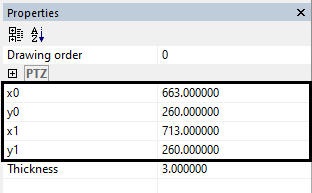
- For other icons, specify the coordinates of the upper left corner (x, y), width (w) and height (h).

- To rotate the icon, specify the required rotation angle in degrees in the Angle field.
Editing the object position using the Properties panel is complete.
Changing the camera angle display
To display the camera angle on the map, do the following:
- Select the object for which it is necessary to display the viewing angle. As a result, the object name will be highlighted with a border of green dots.
- Open the Properties panel for the required object (see Editing object properties using the Properties panel) and expand the PTZ settings group.
- Set the required field values:
- Angle on map — the direction of the display vector on the map. A value of 0 is the actual position of the camera at the time of setting the parameters.
- Telemetry deviation from zero — the actual offset of the camera.
- View angle — the angle of the view display vector.
- View range — the size of the the view display vector.
- Color — the color of the view display vector.
- Transparency — the transparency of the view display vector.
- Invert rotation — select True in the drop-down list if it is necessary to invert the camera rotation.
Changing the camera angle display is complete.
Editing color and transparency (polygon and ellipsis)
...
The order of displaying objects on map is now set.
Configuring object states
...
displaying (polygon and ellipsis)
By default if the object is in several states at the same time, the device icon changes according to these states in a short time, and when the object is selected on the map all its states are displayed as the thumbnails next to it (see Graphic objects on the Map section in Operator's Guide).
It is possible to disable displaying states thumbnails. For this:
...
Overview
Content Tools