
Go to documentation repository


Page History
...
In the Object identification group group, you can see the camera ID, and, if nesessary, you can enter a camera name/short name and text comments.


| Info | ||
|---|---|---|
| ||
You may use camera's short name in hotkeys (see Notes regarding hot key actions). |
...
| Info | ||
|---|---|---|
| ||
By default, the short name is a camera's ID. The full name of the video camera in the object tree is displayed in the the <Short name>. <Name> format. After changing the short name and restarting the Client, the cameras in the object tree will be sorted by their short names. |
...
- If you want to interrupt video streaming from the camera to the Server whenever it is not needed, select Yes for Break unused connections (1).
Conditional interruption of video transmission from a camera to the Server, if:- the video stream is not displayed on either Client or web client layout.;
- the stream is currently not being recorded into Video Footage.;
- the stream is currently not being processed by any detection tool.
- After starting the Client, the default setting is to display video only after the first I-frame (key frame) is received. If the stream comes with a relatively long GOP length (Group of Pictures) or GOV length (Group of Video Object Planes), e. the number of P- and B-frames between I-frames in the stream, the video may be not available for a minute. In this case, select Yes for the Low GOP keyframe rate setting (2). This will reduce the waiting time for video by pushing the preceding I-frame that can be stored in the memory buffer on the Server. In some cases, the I-frame will not be buffered, but in most cases this means that it will soon be received from the device.
In the Authentication group, you can set the username and password to connect to the camera.


If the username and/or password for connecting to the camera are different from the factory settings, select No in the Default field and enter the current credentials.
...
To enable video buffering on Clients, set the buffer length in milliseconds in the Video buffering group.


This value should be between 50 and 1000 milliseconds. If the value 0 is selected, video buffering is disabled.
...
Select a standby / substitute camera from the current Axxon domain in the Alternative view list. The sub camera shows in the layout when the main camera is offline.

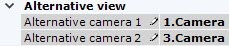
Then you can configure them to show the nearest cameras to the alerted one (see Configuring Alerted Cameras layoutsAlarmed cameras layout).
You can configure video streams under the viewing tile. If a camera supports multistreaming, you can configure two video streams separately: high quality and low quality. When creating an IP device with a high quality video stream, a stream with a higher resolution is selected.
...
To switch between streams in the preview window, click the High-quality video stream and Low-quality video stream tabs.
| Info | ||
|---|---|---|
| ||
When a stream is selected in the preview window, the settings for the relevant stream are displayed; settings for the other stream are hidden. |
...
Overview
Content Tools