
Go to documentation repository


Page History
...
- Button. To continue processing the event, click the button. If this element is the last in the logic, then after clicking the button, the event processing will be completed.

- Radio button. To continue processing the event, select one of the values.

- List. To continue processing the event, select the required value from the list. There can be several lists.

- Checkboxes. To continue processing the event, set one or more checkboxes.

Comment. To continue processing the event, enter a comment and click the button.

Info title Note Depending on the Incident manager settings, the comment can be filled in automatically and blocked from editing.
Image. To continue processing the event, add images and click the button (. The text on the Next button in the image below). The button depends on the Administrator settings. In the example below, it is the Next button. The following options for working with an element are available:
The element already displays the image specified by the settings or the image from the camera or the map associated with the event. The event can be associated with several cameras. In this case, the images are generated from each camera, and you need to select one image. To do this, use the following buttons:
to
update the image, click the + button (1) (the image from the camera or the map will be added at the moment when the event occurred. The button is applicable if the image has been deleted or needs to be updated, for example);
to delete the image, click the - button (2)
;
to scroll through the images, use the < and > buttons (5, 6).
The field (3) displays the number of the selected image, the field (4) displays the total number of added images. To go to a specific image, enter its number in the field (3).
- If it is necessary to upload images, then
The element doesn’t have any images, and they need to be uploaded. To do this, click the + button (1), and a standard Windows Explorer window will open, in which you can select images
. The rest of the steps are similar to those described in the paragraph above.Info title Note in JPG, PNG or BMP format.
| Info | ||
|---|---|---|
| ||
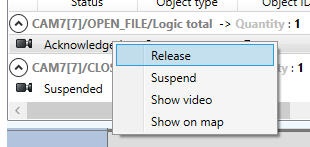
An event with the Acknowledged status is available for processing only by the operator who took it. To release an event without processing, right-click the event and select Release:
|
...
Overview
Content Tools