
Go to documentation repository


Page History
In Axxon Next, you can create detection tools and their sub-tools (child detection tools). Sub-tools process data received from parent detection tools.
The following table lists all Axxon Next detection tools and their sub-tools:
| Category | Detection tool | Sub-tool |
|---|---|---|
| Face | Face detection | Line crossing |
| Face detection (VL) | ||
| Vehicle | License Plate Recognition (VT) | Line crossing Loitering Stop in area Motion in area Object Appearance in the Area Disappearance in area Multiple objects Move from area to area |
| License Plate Recognition (IV) | ||
| License Plate Recognition (RR) | ||
| License Plate Recognition − Search in archive (RR) | ||
| License Plate Recognition − Parking (RR) | ||
| License Plate Recognition (BRS) | ||
| Service | Tampering detection | − |
| Audio loss detection | ||
| Noise detection | ||
| Signal detection | ||
| Trackers | Motion detection | Line crossing |
| Neural Tracker | ||
| Object Tracker | ||
| Poses | Pose detection | Only for the Pose detection: Sitting person detection Common sub-tools: Line crossing |
| Equipment detection (PPE) | ||
| Person-based privacy masking | − | |
| Natural environment | Fire detection | − |
| Object detection | ||
| Smoke detection | ||
| Water level detection | ||
| Retail | Queue detection | − |
| Visitors counter | ||
| Neurocounter | ||
| Other | Embedded Motion Detection | − |
| Embedded Tampering detection | ||
| Embedded Audio detection | ||
| Embedded Face detection | ||
| Embedded Intrusion detection | ||
| Embedded Line crossing detection | ||
| Embedded Object Appearance in the Area | ||
| Embedded Disappearance in area | ||
| Embedded Abandoned Object detection | ||
| Embedded Object disappearance detection | ||
| ROI compression | ||
| Embedded GPS tracker | ||
| Embedded License Plate Recognition | ||
| Embedded temperature detection | ||
| Embedded temperature detection | Face Detection and Temperature Control | |
| Embedded body temperature detection | − | |
Tracker Analytics | Line crossing | |
| Embedded analytics | ||
| Embedded AxxonSoft tracker |
To create a new detection tool, do the following:
Click the Create link in the corresponding video camera tree.
A list of available detection tool categories for this camera will be displayed.
Select the required detection tool.
- Click the Apply button.
The detection tool is now created.
| Info | ||
|---|---|---|
| ||
Mass creation of detection tools of the same type for selected cameras is described in the Mass creation of detection tools section. |
| Note | ||
|---|---|---|
| ||
Each camera stream gets processed by only one detection tool of a particular type. |
An example of creating a Masks detection sub-tool:
- Create a Face detection object by selecting Category: Face from the list.
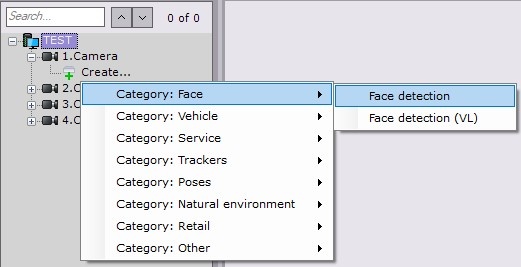
- Create a Masks Detection sub-tool based on the Face detection object.

The remaining detection sub-tools are created in a similar way.
To create a new detection tool for a camera:
...
Select the one you need.
| Info | ||
|---|---|---|
| ||
Service Video and Audio Detection Tools are listed under Additional. |
...
Creation of the detection tool is now complete.
| Note | ||
|---|---|---|
| ||
Each camera feed gets processed by only one detection tool of a particular type. |
To create a detection tool for situation analysis, you must first create the corresponding object. It will be used as a basis for all situation analysis tools.
Furthermore, you create Scene Analytics based on VMD and the Motion Mask's metadata (see Configuring VMD).
| Info | ||
|---|---|---|
| ||
To enable Scene Analytics detection tools under a basic VMD, you have to activate the object tracking option in its settings. |
Facial recognition tools are created in the same fashion: the basic Face detection object and its derivative detection tools.
A posture detection tool is created under a parent Pose Detection object.
You can create a detection tool of the same type for a number of cameras. To do this:
- Create the required tool on any video camera.
- Click Apply.
- Click the
 button and select the cameras for which you want to create the same detection tool.
 - Click Apply.
To remove a detection tool, select the parent object and click Remove. To disable, select No in the Enable field.
| Note | ||
|---|---|---|
| ||
When you delete a detection tool all its metadata is also deleted. If you have deleted a detection tool, you cannot search its video with the forensic MomentQuest search. |
Overview
Content Tools