
Go to documentation repository


Page History
...
- Create a SIP-device object based on the SIP-terminal object of the SIP-server type (1).

- In the User ID field (1), enter the SIP-device identification number, i.e. the number to call it.
In the Device IP address field (2), enter the SIP-device IP address. If you are not going to send data to the SIP-device, this field is optional.
In the Password field (3), enter the password specified on the SIP-device. The SIP-device with the specified identifier will be connected to Axxon PSIM only if the passwords on the device and in Axxon PSIM are identical.
- The State field (4) indicates the current status of the SIP-device.
- From the Device type drop-down list (5), select the icon type used to display the device on the Map.
- From the Device priority drop-down list (6), select the priority of calls from this device when displayed on the SIP panel. The lower the number, the higher the priority and, hence, the higher the call is displayed in the list. If the field is left blank, the priority is considered minimal. Calls from devices with the same priority will be sorted by the time of the call.
- Click Apply (7).
...
- Go to the Video / Audio tab (1) on the settings panel of the SIP-device object.

Set the Video switch (2) to the position corresponding to the video camera used for calls:
Off — the video is not used during the call.
SIP camera — a SIP-device camera connected via the SIP protocol is used. If the wrong device is selected by default in the Camera (3) drop-down list, change the selection. The corresponding Camera object may not be created in the Axxon PSIM objects tree at this step; in this case, it will be created automatically after clicking the Apply button.
Other — any other camera from the Axxon PSIM hardware tree is used. In this case, select the name of the required Camera object from the Camera drop-down list (3).
Set the Audio switch (4) to the position corresponding to the microphone used for calls:
Off — the audio is not used during the call.
On — when making a call, the microphone of the SIP-device, displayed in the Microphone information field (5), is used. The corresponding Microphone object may not be created in the Axxon PSIM objects tree at this step; in this case it will be created automatically after clicking the Apply button.
Click Apply (6).
Info title Note If necessary, the pre-configured missing Camera and Microphone objects will be automatically created in the Axxon PSIM objects tree.
...
- Go to the Relay tab (1) on the settings panel of the SIP-device object.
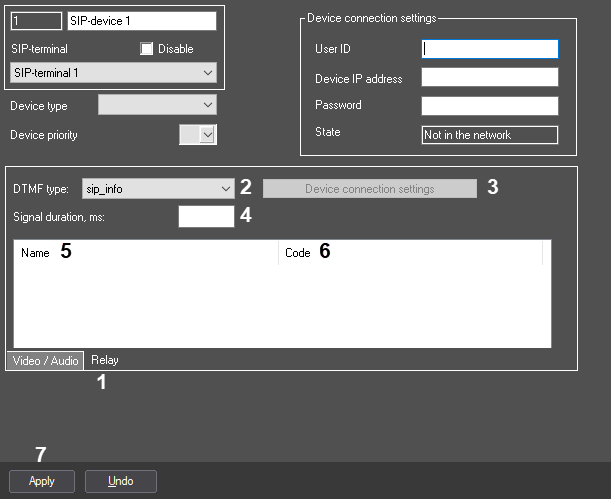
- Select the type from the DTMF type drop-down list (2):
- sip_info – signals are transmitted in the SIP INFO message.
- sip_notify – signals are transmitted in the SIP NOTIFY message.
- in_band – the signal is transmitted as normal sound in an audio stream.
- http_bas – signals are transmitted over HTTP. When this type of tone is selected, the Device connection settings button (3) becomes active. Click the button to open the connection settings window:
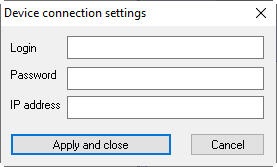
In this window, specify the Login, Password and IP address of the SIP device. If the port is different from the actual one (for example, it's 8180, not 80), then specify the port in the IP address field also. If the IP address field is left blank, then the IP address will be taken from the session, and the port will be presumed to be 80.
- In the Signal duration, ms field (4) set the time period in milliseconds during which the command is to be sent. This value is applied if duration is not set for a specific command.
- In the Name field (5), enter the name of the command displayed on the SIP panel.
In the Code field (6), enter the unique command code.
Info title Note If the http_bas tone type is selected, then enter a request according to the documentation of the SIP device in the Code field, for example: GET access/general/lock/open/remote/accepted/1
- Click Apply (7).
...
Overview
Content Tools