
Go to documentation repository


Page History
...
Axxon PSIM™ software and video capture cards sharing allows reallocating video capture card resources to the cameras:
Option 1. Reallocation of cameras between ADCs of a video capture card.
...

A. Uniform camera allocation between ADCs
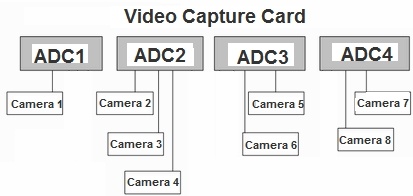
Option 2. Reallocation of resources of one ADC between camerasvideo signal of which are to be processed and digitized by one ADC.
...
- Define the numbers of the idle video capture channels (taking into account BNC plug numbering).
- Go to the Hardware tab in the System settings dialog box (1).
- Select the Camera object, created before, with the same channel number as the BNC plug (idle channel) (2). The settings panel for the selected object is displayed on the right of the Hardware tab.

- Make sure that no signal is displayed in the video field (1).

- The signal displayed in the video field indicates that the Camera object is matched to another video channel.The video channel number is specified in the Channel number drop-down list in the Basic settings tab (2). Match the Camera object with the channel number, which corresponds to the BNC plug number and the Camera object number, or scan for a Camera object, matched with the desired channel number.
- Set the Disabled checkbox (3).
- Click the Apply button (4).
The disabled Camera object is indicated with a cross mark.
...
- Display the selected camera box on the Monitor.
- Activate the selected camera box by left clicking on it.
- The actual frame rate of the selected window video signal is displayed in the information window in the top right corner of the Monitor.

| Info | ||
|---|---|---|
| ||
| For Stretch video cards of standard compression (h264) the frame rate that is displayed on Monitor in Axxon PSIM™ software can be less than the frame rate that is indicated by the video card manufacturer. This is due to the fact that while displaying the frame rate of video signal digitization on Monitor in Axxon PSIM™ software blank frames that are distributed by the video card, are not taken into account. «Blanck frames» do not contain the information about the image and are created by the video capture card when there are no changes in the video stream stream and a new video frame is the same as the previous one (for example, there is no motion in the frame). |
...
- Go to the Hardware tab in the System settings dialog box (1).
- Select the relevant Video Capture Device object, created before, in the Hardware tab in the objects tree (2). The settings panel for the selected object is displayed in the right part of the Hardware tab.

- If it is necessary to increase the total frame rate up to the maximum allowed value, move the Rate slider to the Max position (3).
- If it is necessary to reduce the total frame rate to the minimum allowed value, move the Rate slider to the Min position. The minimum total frame rate of video signals, digitized and processed by selected ADC, is 3 times lower than the maximum allowed one.
- If it is necessary to return the default grooming settings, move the Rate slider to the middle position. The default total frame rate is 2 times lower than the maximum allowed one.
- Click the Apply button (4).
- Close the System settings dialog box and restart Axxon PSIM™ software.
...
| Info | ||
|---|---|---|
| ||
| Video inputs numeration of SC300Q16 (FX4) and SC300D16 (FX8) video capture cards does not correspond to the numeration of PCI channels in Intelect Axxon PSIM. It is impossible to allocate video inputs to chips one after another (i.e. the first corresponds to 1 and 2 chips, the second upper input corresponds to 3 and 4 etc.) because OS determines it. |
...
- Go to the Hardware tab in the System settings dialog box (1).
- Select the Camera object, created before, corresponding to the camera, which frame rate is to be increased, in the objects tree in the Hardware tab (2). The settings panel for the selected object is displayed on the right of the Hardware tab.
- To increase the frame rate of a camera up to the Real time rate (25 fps in PAL format and 30 fps in NTSC format), reallocate other cameras serviced by the same ADC as with the camera above, to other ADCs.
...
Example 1. Configuring video signal digitization with the Real time frame rate.
Task. Video signal on Camera2 Camera 2 is to be digitized with the Real time frame rate.
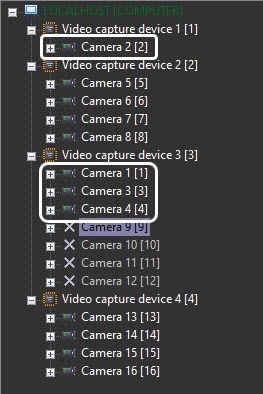
Initial data. The card has 4 ADCs. They are matched to 4 Video Capture Device objects in the objects tree. The video capture card may have up to 16 cameras connected to it. 8 cameras are actually connected to the video capture card. The objects matched to the remaining 8 cameras are disabled. Each of two ADCs, matched to the Video Capture Device 1 and Video Capture Device 2 objects, is configured to digitize the signals from 4 cameras. The ADCs matched to the Video Capture Device 3 and Video Capture Device 4 objects are not configured to digitize signals from any cameras. An example of the objects tree is given in figure A:


A. Initial data data B. Result
...
- Select the Camera 1 object in the objects tree. The settings panel for the selected object is displayed.
- Select Video Capture Device 3 in the Video Capture Device list.
- Click the Apply button.
- The Camera 1 object moves to the subdirectory of the Video Capture Device 3 object (see B).
- Repeat ( 1) – (-4 ) steps for the Camera 3 and Camera 4 objects.
- Select the Video Capture Device 1 object in the objects tree.
- Make sure that the Speed slider is in the max position.
If the Speed slider is in the max position, then setup is completed.
If the Speed slider is in another position, move it to the max position and do ( 8) - (10 ) steps. - Click the Apply button.
- Close the System settings dialog box and restart Axxon PSIM™ software.
- The frame rate of the selected camera increases up to the Real time rate (for information on testing the frame rate change, see the Actual frame rate section).
- If the number of connected cameras prevents the configuration of video signal digitization from one of the cameras with the Real time rate (for example, when 15 of 16 allowed cameras are connected), or if the frame rate on several cameras is to be increased simultaneously to the rate, lower than the Real time one, then the cameras, the frame rate of which is to be increased, are allocated between ADCs and they do not exceed the maximum allowable number. The frame rate is increased by as many times, as the number of cameras on ADC is reduced.
...
Example 2. Configuring video signal digitization from 2 cameras with increased frame rate
Task. Video signal on Camera1 Camera 1 and Camera5 Camera 5 is to be digitized with increased frame rate.
Initial data. The card has 4 ADCs. They are matched to 4 Video Capture Devices objects in the objects tree. The video capture card may have up to 16 cameras connected to it. 12 cameras are actually connected to the video capture card. The objects matched to the remaining 4 cameras are disabled. Each of 3 ADCs, matched to the Video Capture Device 1, Video Capture Device 2 and Video Capture Device 4 objects, is configured to digitize the signals from 4 cameras. The ADC, matched to the Video Capture Device 3 object, is not configured to digitize the signals from any camera. An example of the objects tree is given in figure A.

A. Initial data data B. Result
...
- Select the Camera 1 object in the objects tree. The settings panel for the selected object is displayed.
- Select Video Capture Device 3 in the Video Capture Device list.
- Click the Apply button.
- The Camera 1 object moves to a subdirectory of the Video Capture Device 3 object (B).
- Repeat ( 1) – (-4 ) steps for the Camera 5 object.
- The frame rate on Camera1 Camera 1 and Camera5 Camera 5 increases twofold (for information on testing the frame rate change see the Actual frame rate section).
- Click the Apply button.
...
- Go to the Hardware tab in the System settings dialog box (1).
- Select the Camera object, created before, corresponding to the camera, ADC video processing queue of which is to be changed, in the Hardware tab in the objects tree (2). The settings panel for the selected object is displayed on the right of the Hardware tab.
- Go to the Advanced settings tab on the settings panel of the Camera object (3).
- If it is necessary to queue the camera with 1/2 priority for ADC video processing, move the Processing slider in the Priority group to the 1/2 position (4).
- If it is necessary to queue the camera with 1/3 priority for ADC video processing, move the Processing slider in the Priority group to the 1/3 position.
- If it is necessary to return the camera into the normal queue for ADC video processing (set by default), move the Processing slider in the Priority group to the Normal position.
- Click the Apply button (5).
Video processing priority is now set.
Setting video recording priority
While processesing processing the video signal before recording it to the video server archive, ADC resources are reallocated between the cameras by queueing one of the cameras with 1/2, 1/3 or the Real time priority.
...
- Go to the Hardware tab in the System settings dialog box (1).
- Select the Camera object, created before, corresponding to the camera, ADC video processing queue of which is to be changed, in the objects tree of the Hardware tab (2). The settings panel for the selected object is displayed on the right of the Hardware tab.
- Go to the Advanced settings tab on the settings panel of the Camera object (3).
- If it is necessary to queue the camera with 1/2 priority for ADC video processing in the recording mode, move the Recording slider in the Priority group to the 1/2 position (4).
- If it is necessary to queue the camera with 1/3 priority for ADC video processing in the recording mode, move the Recording slider in the Priority group to the 1/3 position.
- If it is necessary to queue the camera with the Real time priority for ADC video processing in the recording mode, move the Recording slider in the Priority group to the Real time position.
- If it is necessary to return the camera into the normal queue for ADC video processing in the recording mode (set by default), move the Recording slider in the Priority group to the Normal position.
- Click the Apply button (5).
Video recording priority is now set.
Overview
Content Tools