
Go to documentation repository


Page History
...
| Info | ||
|---|---|---|
| ||
If the administrator password is not set (see Administrator password registration) and the access to the required tabs of the System settings dialog window is limited (see Limiting access to the tabs of the System Settings window), then the limitation of the object configuraion the object configuration rights will not be available. |
...
- Open the Users tab in the System Settings window (1).
Open the required User permissions object in the objects tree under the User permissions button (2).
The settings panel for this object opens at on the right side of the System Settings window.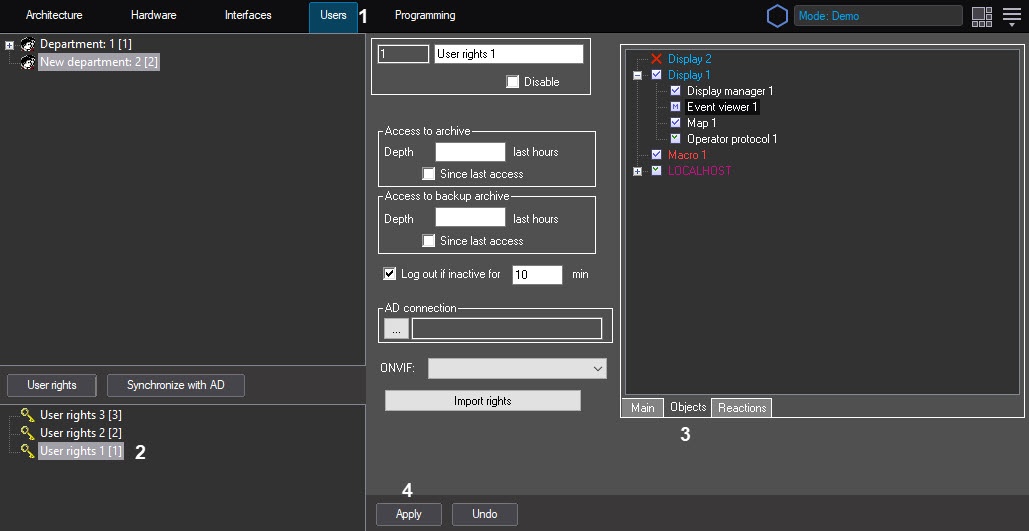
The tree in the lower part of the settings panel represent the rights of the current operator. Checkboxes to the left of the objects indicate and allow changing the administrative, control or viewing rights for these objects. The components of the tree represent the system objects which the current user can administer according to their rights’ settings. Name of marks corresponds to object names, which administration, control and monitoring may be accessible to Operator with proper rights (3).
Correspondence of mark type to Operator rights is given in the table.Type of mark
Right to administer
Right to control the object
Right to monitor the object
A gray mark
Yes
Yes
Yes
A green mark
No
Yes
Yes
An M mark
No
No
Yes
A cross mark x
No
No
No
Info title Note. The administrative, control or viewing rights to interface objects depend on the rights to the Computer objects. The rights to the Computer object have a higher priority. For example, if the user rights allow the administration of the Display object, but prohibit the administration of the Computer object to which this Display is assigned, then a user logged on to the computer prohibited for administration will not be able to administer the Display object (see also Assigning the displays to the operator workstations).
...
The following hotkeys can be used for objects tree control:
| Key | Function |
| "+" on the numeric keypad | Grants all rights to the selected objects (sets the gray mark) |
"-" on the numeric keypad | Forbids the selected object (sets the red cross) |
| "Space" | Sequential change of the rights to the selected object in the direction of increasing (forbidden-monitoring-control-administration and then cyclically). |
| "Left" and "right" arrows | Expand / collapse the selected tree branch. |
| "/" on the numeric keypad | Fully collapse the selected branch of the objects tree |
| "*" on the numeric keypad | Fully expand the selected branch of the objects tree |
| "Shift"+"/" on the numeric keypad | Fully collapse all branches of the objects tree. This view will be saved for the current user even after the Axxon PSIM restart. |
| "Shift"+"*" on the numeric keypad | Fully expand all branches of the objects tree. This view will be saved for the current user even after the Axxon PSIM restart. |
Expanding and collapsing the tree functions are also available when you right-click on an object in the object tree (see Expanding the tree and Collapsing the tree).

Overview
Content Tools