
Go to documentation repository


Page History
Axxon PSIM™ system PSIM allows creating objects based on a template. A template is created using the Save function accessible in the main functional function menu.
| Info | ||
|---|---|---|
| ||
Objects can also be copied and pasted using the Ctrl+C and Ctrl+V keyskey combinations. Once copied, object can be pasted multiple times. The copied object will be stored in the clipboard until Axxon PSIM restart, or until the clipboard clipping is replaced with a new copied object. |
Below we describe you can see how to create the Camera object on the basis of by a template using the Save function.
First of all, select an object that has already been created and configured, for instance, the Camera 1 object. Figure shows a setting The figure displays a settings panel with highlighted parameters of the Camera 1 object which have been modified were edited (differ from the default settings).
...
To create a template based on this object, do the following:
- Call Open the context menu of the Camera 1 object.
- Select the Save menu item.
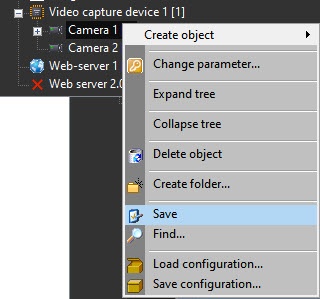
The As a result, the template of the Camera object ( with the settings of the Camera 1 object ) has been will be created.
Now it is necessary create the Camera 2 object based on the Video Capture Device 1 object (see The Create object function section). By default, the Camera 2 object will have the same settings as the Camera 1 object.
...
Overview
Content Tools