
Go to documentation repository


Page History
...
If no Group by value is selected and if the Simple view option is disabled, then the bottom of the Current events tab displays the cells, each of which corresponds to one event. The number of horizontal cells is determined by the Operator protocol window width. The information on the event and the frames from the camera linked to the object from which the event is received are displayed in the cell (see Connection of objects with cameras in Administrator's Guide). The name of the corresponding camera is displayed on the frame. If there are several cameras linked to the object, you can use the
 buttons to browse the screenshots.
Info title Note There is no need to configure connection between the embedded detection tool and camera in order to show the frame by events from embedded camera detection tools.

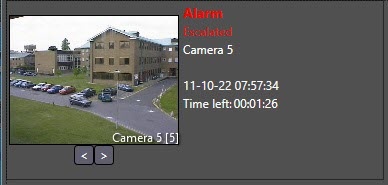
The cell contains the following information:- System name of the event;
- Object registered the event;
- Name of the Region object corresponding to the area where the event is registered;
- Date and time of event registration;
- Time left before the Non-processed event type is assigned to the event;
Information about event escalation or optional parameters.
Info title Note The list of optional parameters is set when configuring the Operator protocol object (see Administrator's Guide).
- If no Group by value is selected and if the Simple view option is enabled, then the bottom of the Current events tab displays a simplified list of events without the frames from the camera:
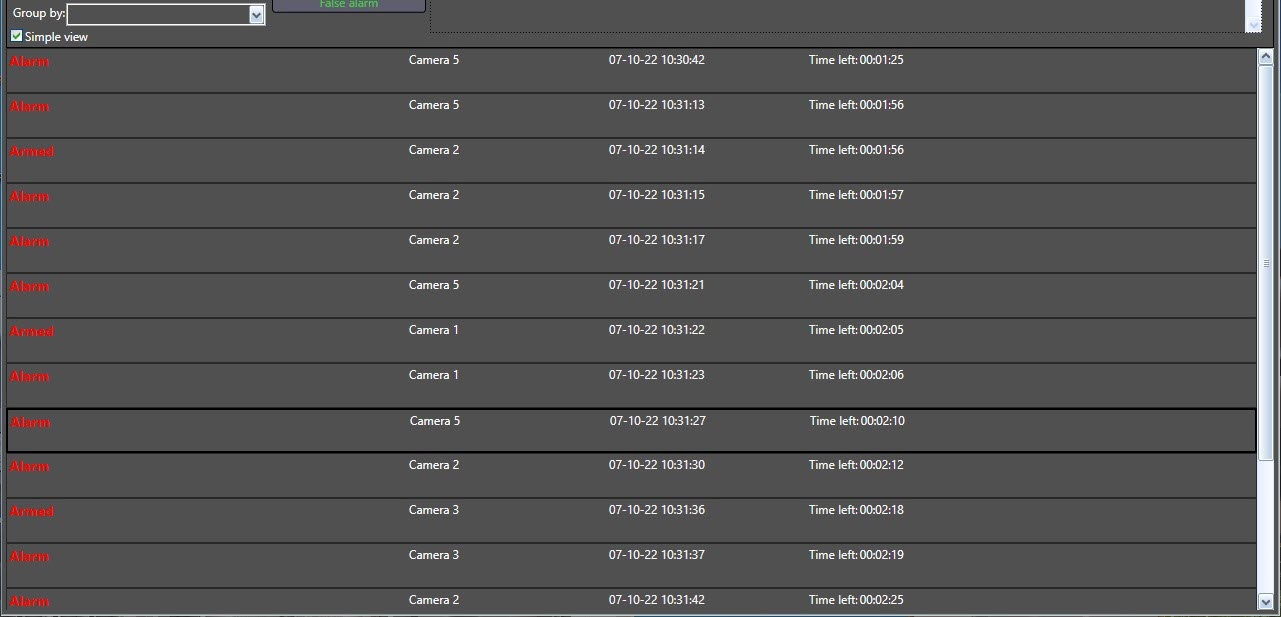
Each line corresponds to one event and contains the following information:- System name of the event;
- Object registered the event;
- Date and time of event registration.
- If any Group by value is selected, then the bottom of the Current events tab displays a list of groupings by the selected parameter. The list line contains the number of events in the grouping and the name of the parameter by which the events are grouped.

To view all events from the group, click on the button. To hide the grouped events, click the
  button: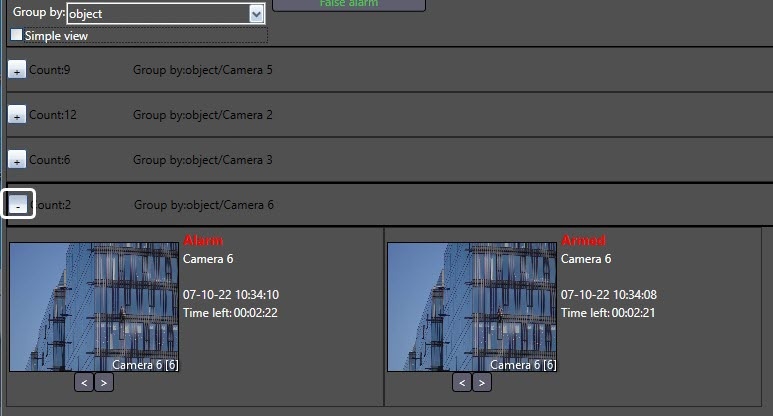
The content of the expanded group depends on whether the Simple view checkbox is set or not. If it is disabled, the events will be displayed as cells. If the Simple view checkbox is set, then a simplified list will be displayed.
The Search in events archive tab
 The list to select the department which the operator belongs to. If the field is empty, than all operators are available to select.
 The list to select the operator.
Select the region the object corresponds to:
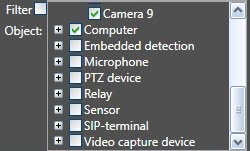
Enabling the filter by objects and object selection:
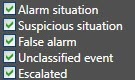
- The types of events the search is performed by:
- The button to set the initial date
 .
. - The button to set the final date
 .
. - The button of search start
 .
. - The button to switch to the archive to view and export video of the event
 .
.
There is the table containing the search results at the bottom of the Search in events archive tab.

The description of the table is given below:
Column | Description |
|---|---|
Type | The icon of event type |
Source | Source object of the event |
| Init.event | Initial event or information that the event was created by the Operator on the Create event tab |
Operator | Operator processed the event |
Date/Time | Date and time when the event was processed |
Comment | Operator's comment |
| Event time | Date and time when the event was registered in the system |
| Operator response time | The time period in seconds between the registration of an event in the system and its processing by the operator. |
The Create report tab
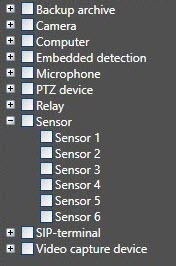
- The list of objects by the events from which the report can be created:
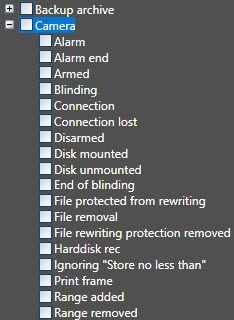
- The list of events by which the report can be created:
- The button of setting the date after which events get into the report
 .
. - The button of setting the date after which events do not get into the report
 .
. - The
 checkbox enables displaying an event in the report only once. If this checkbox is set unchecked, then one event will be displayed for each Operator protocol in the report.
 - The
 checkbox enables filtration of the events list on the right according to objects selected on the left (e.g., if only Camera objects are selected, then only Camera events are displayed).
 - The button to create a report
 .
.
The Create event tab
- The field for description of the event:
 .
. - The button of setting the date and time of the event
 .
. - The dropdown list to select the data source type
 .
. - The dropdown list to select the source object of the event
 .
. - The button to create an event
 .
.
Overview
Content Tools