
Go to documentation repository


Page History
...
- In the Layouts drop-down list, select the required layout shape.
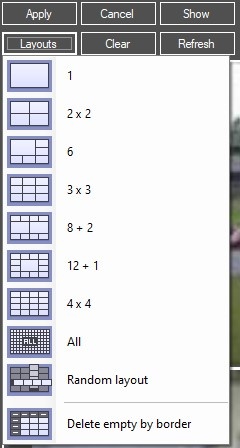
If you select the Random layout item, the window will open, where it is necessary to specify the number of cells in the layout, vertically (columns) and horizontally (strings).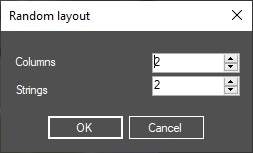
- You can adjust the layout shape manually using the <, >, ∨, ∧ buttons. Each click of these buttons expands the cell by 1 position in the corresponding direction.
In order to remove unnecessary empty cells along the border, select the Delete empty by border item from the Layouts drop-down list.
...
After the required layout shape and cells number are configured, it is necessary to add the Surveillance window to the layout. To do this, drag the cameras from the list (1) to the layout cell using the left mouse button. The Surveillance window of a single camera can be added to the layout only once. The cameras which are already added to the layout are highlighted in gray in the list.
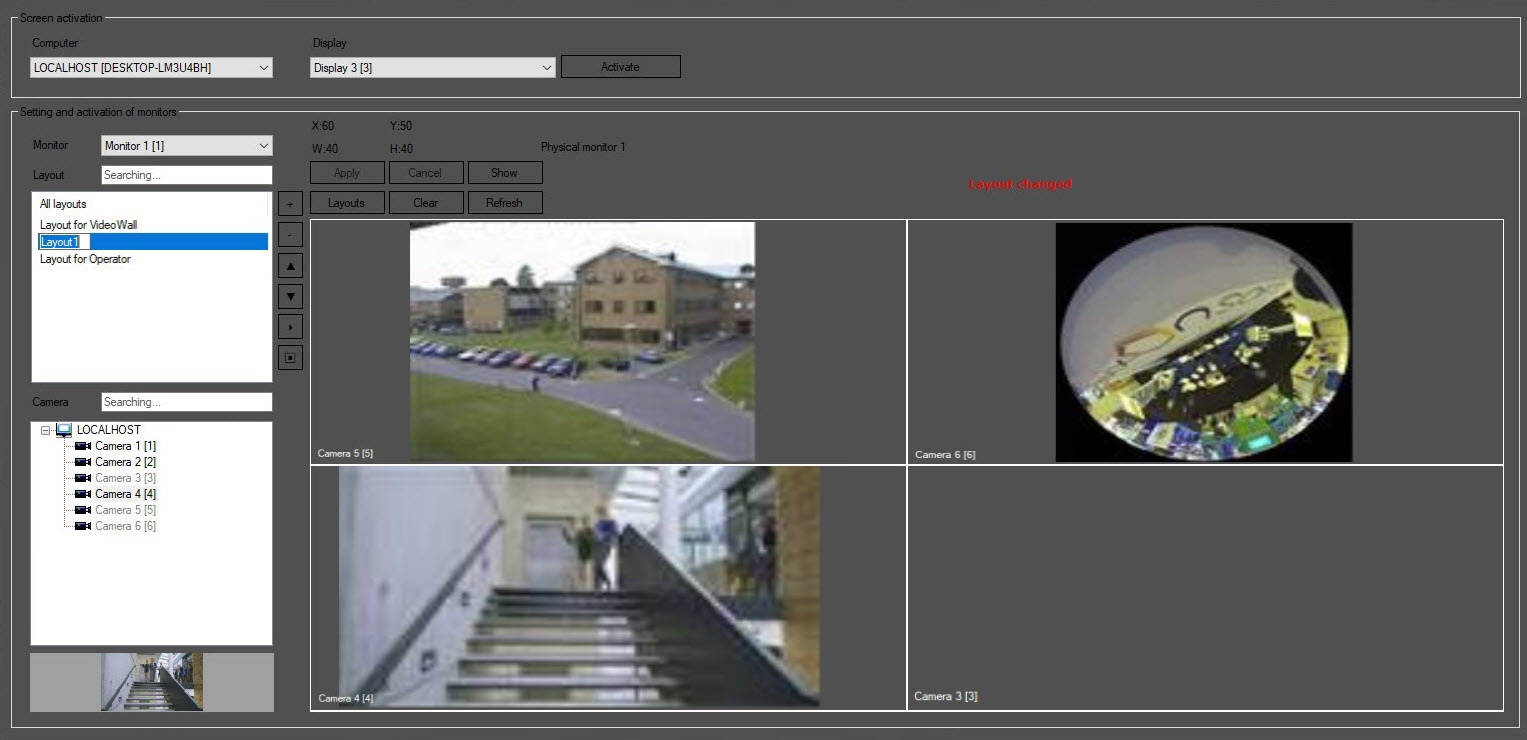
The (1) list displays cameras added to the Monitor(s) (see Selecting and configuring video cameras) created under the selected Display object (see Selecting and activating the display).
...
Overview
Content Tools