
Go to documentation repository


Page History
Use of You can work with Axxon Onethrough a via the Web-Client takes place remotely , through using a Web web browser and the TCP/IP protocolcommunication environment. Remote video surveillance via a Web browser does not web browser doesn't require installation of Axxon One.
...
| title | Attention! |
|---|
Opera browser supports Web-Сlient starting from version 15.
...
.
To start the Web-Client, do the following:
- Start a Web web browser.
In the address bar, type enter the address of the Axxon One Server Web-Server in the following format: <web server <Web-Server IP address>:<Port>/<Prefix>.
Tip Connecting the Web and Mobile Clients to the Server behind NAT
Note title Attention! The Server URL is case-sensitive. You have to type in It is necessary to enter the URL using exactly in the exact letter case of characters specified in the settings (see Configuring the Web Server).

Note title Attention! If A connection via the secure HTTPS protocol will be automatically established, if the Web-Server is properly configured accordingly (see Configuring the Web-Server), then a secure HTPPS connection is automatically established.
Enter a
usernamelogin and password
for connectingto connect to the Axxon One Web-Server.

Info title Note If you try to log in with an invalid login and password, an error message will be displayed.
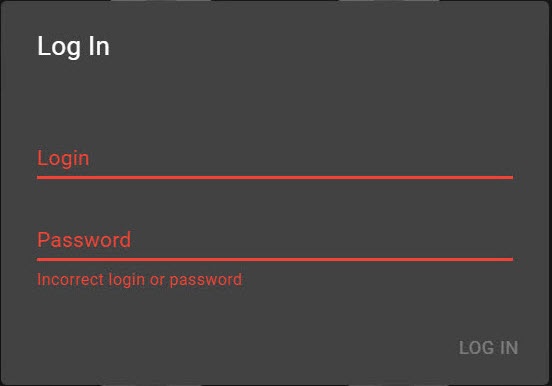
Note title Attention! After 5 successive failed authorization log in attempts, the user is blocked for 10 minutes.
...
As a result, the Web-
...
Client interface will be displayed. By default, the first listed layout will be displayed. If there are no layouts, the Cameras panel
...
will open on the left and
...
the video image from the first listed video camera will be displayed.

To switch between users, press change the Change user link in the upper-right corner; another authentication will followWeb-Client, click the  button in the top right corner and select the Change user menu item.
| Info | ||
|---|---|---|
| ||
The name of the current user is indicated near this pointdisplayed next to this item. |

Overview
Content Tools