
Go to documentation repository


Page History
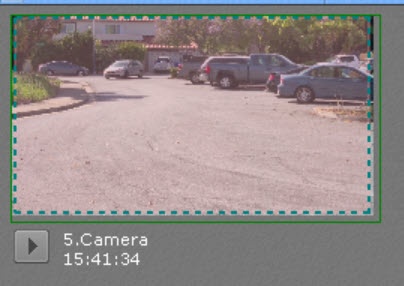
Each alert/ alarm event is displayed on Alert panel the Alarms Panel as follows: each Event Preview tile shows a thumbnail the event preview window with the first frame of video footage for the relevant alarm event, the ; under the preview window, there is a playback button, time stamp of when the alarm event occurred and the name of the video camera ID.
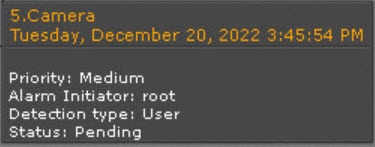
When you hover the mouse cursor over the Event Preview tile, all event preview window, the additional information about the alarm pops up.
event is displayed:
When If you click the
 button, the event footage/alarm recording will then be alarm event is cyclically played back in Event Preview in a repeating cyclethe preview window. To stop the playback, click the
 button.
On the Alert panel, click on When you click the alarm event video window to play back the event video in the camera preview window on the Alarms Panel, the alarm event will be played back in the surveillance window.
If you click the
 button is activated on the Alert panelAlarms Panel, the alarm video will appear in a event will be played back on the temporary layout containing just only the current specified camera.
If the button is inactive, the video playback will start in you don't click this button, the alarm event will be played back in the surveillance window on the regular layout.
Overview
Content Tools