
Go to documentation repository


Page History
| Section | |||||||||||||||||||||
|---|---|---|---|---|---|---|---|---|---|---|---|---|---|---|---|---|---|---|---|---|---|
|
...
| Info | ||
|---|---|---|
| ||
If the path to the psim.sec key file was not specified during the installation, it is necessary to put psim.sec into the Axxon PSIM software root directory. In the absence of the key file starting will be in the Axxon PSIM Axxon PSIM Demo demo mode. |
The Axxon PSIM system can be started either:
- Automatically. The software starts automatically after the operating system loads.
- Manually. Axxon PSIM can be started through the Start menu: Start → All Programs → Axxon → Axxon PSIM. To start Server configuration click the Axxon PSIM menu item, while for Client configuration go to Client Workstation.
...
| Info | ||
|---|---|---|
| ||
If there is no license key and Axxon PSIM is started in the Axxon PSIM Axxon PSIM Demo demo mode, then there is the “Axxon PSIM Axxon PSIM Demo mode” Demonstration mode message in the startup dialog box. |
...
If Windows authentication is used for authorization, login and password input is not neccessarynecessary. To start the Axxon PSIM software just click the Registration button. Login and Password fields are to be empty in this case.
| Info | ||
|---|---|---|
| ||
The Axxon PSIM software package provides with three types of user rights: administration, controlling and monitoring. |
Confirmation by supervisor
Confirmation by supervisor is required while the user log-in to the system if the authorization by four-eyes rule is configured in the system.
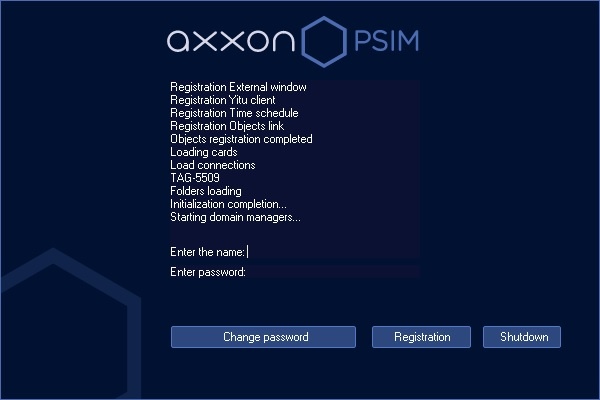
After clicking the Registration button it will be proposed to enter the supervisor login and password. After entering the supervisor password click the Registration button again.
Password change at logging in
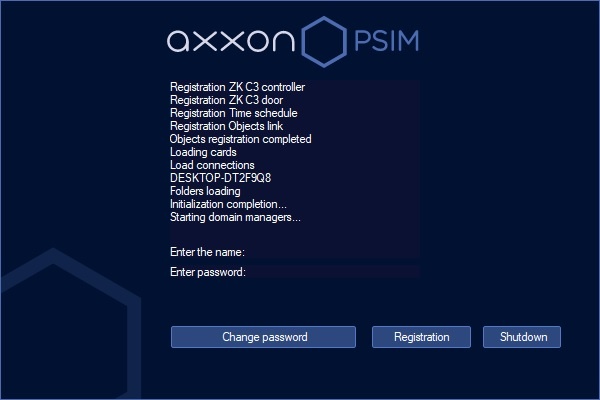
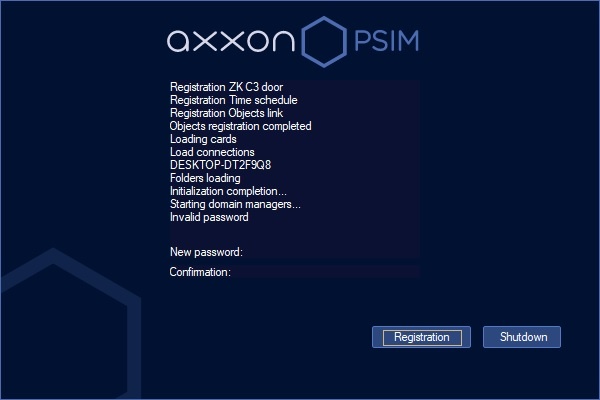
The password change can be required if there is the corresponding setting in the Axxon PSIM software. It may occur at the first user login to the system or after the current password time-out. In this case after clicking the Registration button you will be proposed to enter and confirm a new password.
The password can be changed by user request if there is the corresponding setting in the Axxon PSIM software. In this case click the Change password button and then enter and confirm the new password.
| Info | ||
|---|---|---|
| ||
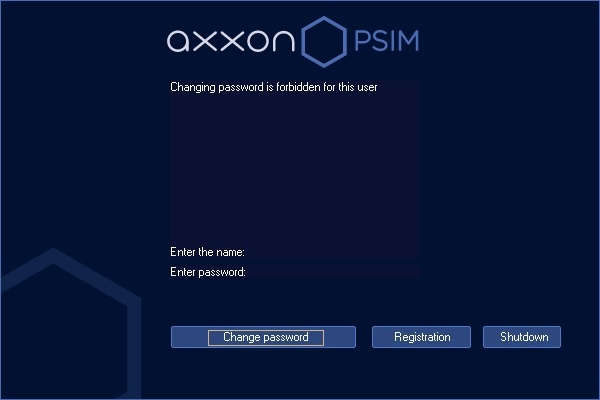
| If the user is forbidden to change the password by request, the corresponding message will be displayed. |
| Note | ||
|---|---|---|
| ||
The new password is not to be the same as the previous one. |
To start the Axxon PSIM software after entering the new password click the Registration button.
Two-factor authentication
The two-factor authentication function can be configured in Axxon PSIM requiring login confirmation by SMS code – see Configuring two-factor authentication. In this case, after entering the login and password and clicking on the Register button, a short message with the code will be sent to the user's phone number. Enter this code in the SMS code box that opens, and then click the OK button.
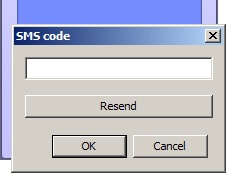
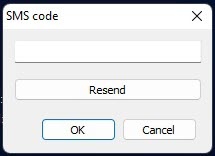
If the message with the code does is not delivered, you can click the Resend button to send the code again but not less than in 10 seconds after the previous resend.
Shutting down
Shut down the Axxon PSIM software as follows:
- Point the mouse to the upper right corner of the screen and the Axxon PSIM Quick Access Toolbar (QAT) will appear.
- Click the
 button in the QAT.
 - Select the Shutdown menu item.
...
Overview
Content Tools