

Page History
...
- Names of structuring rules are displayed in the first list

- If a new rule has to be added to the first list, click
 (1-2). Enter the name of the new rule in the opened Enter/change value dialog window and then click ОК OK.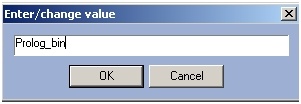
If the name of the rule has to be edited, select the name of the required rule and click
 (1-2). Set a new name of the selected rule in the opened dialog window Enter/change value and then click OK.
Info title Note. It is possible to click upon the name of the rule with left mouse button twice instead of button.- If the rule has to be deleted, select the name of the required rule in the first list and click
 button(1-2)
 - If the name of the rule has to be moved upwards, click
 ;
;  - to be moved downwards (3)
 - Select the name of the rule in the first list and then enter the required changes in the field 4 to create/edit the text of the structuring rule (Figure 6.3—45, 4)
- If the message about registration of the given receipt area has to be sent to POS-server, set the checkbox Sent event (Figure 6.3—45, 5)
- Repeat steps 1-7 for all the required setting groups on the edit panel
...
Overview
Content Tools