To configure the user security policy, do as follows:
- Go to Settings → Options(1) → → Security Policy (2)policy.
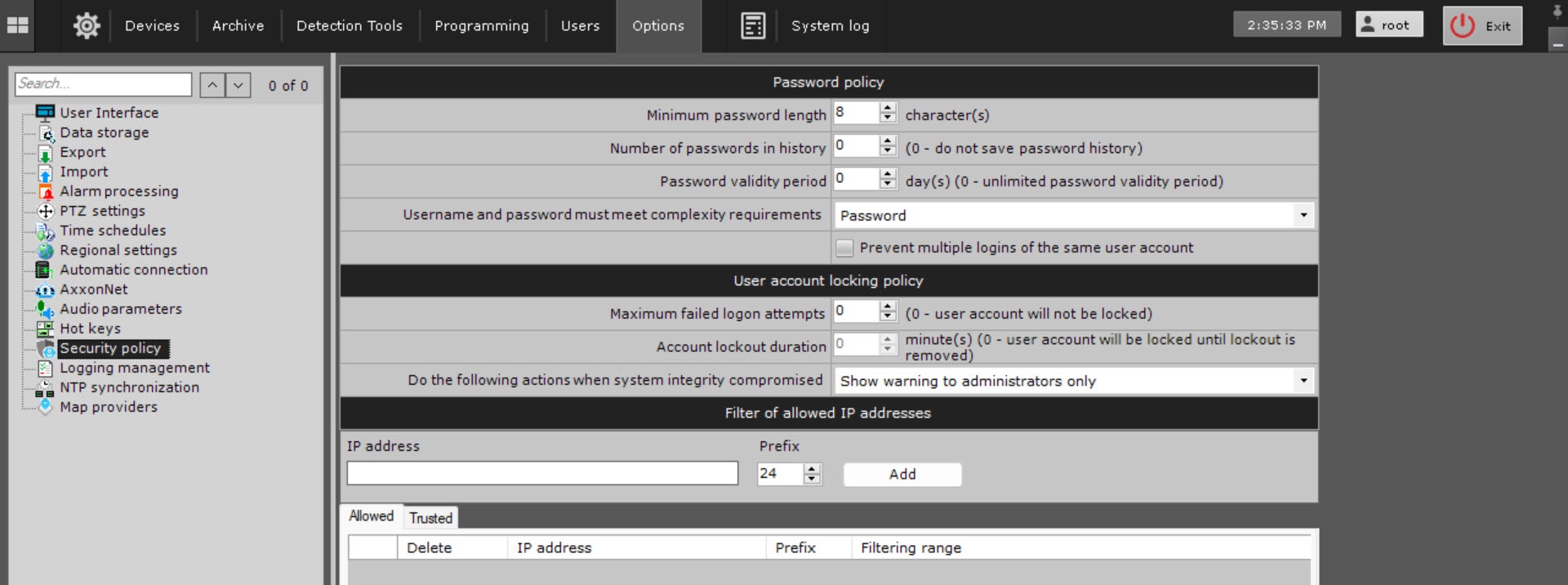 Image Modified
 - Set In the Minimum password length field, set the minimum password length (3).
- Set In the Number of passwords in history field, set the number of the most recent passwords for each user to be stored in history (4 ). 0 – do —do not store password history. If this value is non-zerodifferent from 0, the passwords that are stored in history may not be reused.cannot be used when setting a new password.
- In the Password validity period field, set the password validity period in days. After the validity period Set the password expiration time interval in days (5). After the time interval expires, the user will be is prompted to set a new password. 0 — the —the password validity period never expires.
- Select In the Username and password must meet complexity requirements field, select the positions to meet complexity requirements: nothing, password only, user name and password (6).
- Nothing.
- Password only.
- Username and password.
user nameshould contain no less than 6 - must contain at least six characters and at least
|
2 should - must not include common role names, such as: user, admin, administrator,
|
admin1- administrator1, root, super, superuser, supervisor.
|
The password has to - Password must contain at least
|
8 characters, which should - eight characters that must meet at least
|
3 requirements listed below:- three requirements for passwords containing less than 10 characters and at least two requirements for passwords containing 10 or more characters:
|
at least 1 capital at least 2 lowercase letters- At least two lowercase letters;
|
at 3 at 4 - four special characters: . , : ; !
|
\"#$%&'*+,-./:;<=>?@[\\]^_`{|}~- [ ] { } + − = < >" @ ' # * $ ` % ^ & _ ~.
|
- If you need to limit the number of sessions per user to one, set the corresponding checkbox (7) Prevent multiple logins of the same user account checkbox. This requirement also applies to web Web-Clients and mobile Clients.
Set In the Maximum failed logon attempts field, set the number of failed login logon attempts to lock a the user's account (8). 0 – no —no account locking on incorrect passwords. If this value is non-zerodifferent from 0, when a new user is created, they will be are given the name user User with a random number from 10000 to 99999. The name can be changed in the user settings.
| Note |
|---|
|
When unblockedunlocked, the user is offered only one authentication attempt. A successful authentication will reset the failed attempts counter to resets the failed attempts counter to zero, otherwise the user account will be blocked is locked again. |
- Set In the Account lockout duration field, set the duration of user account locking lockout on failed login attempts in minutes (9). 0 – the —the account can be unlocked by the administrator only (see Locking a user account Configuring local users, Configuring LDAP users).
- Click the Apply
 Image Added button.
Configuring the user security policy is complete.
| Note |
|---|
|
If any user accounts created in your system before you applied changes in security policy are incompatible with the new requirements, the users will be are prompted to change their credentials upon their next login.  Image Modified Image Modified
|


