The People counter detection module can be configured using the System settings menu, under on the Hardware tab, on the People counter detection control settings panel, using the Camera settings.
...
The People counter detection module is set up configured as follows:
- Go to the People counter detection control settings panel.
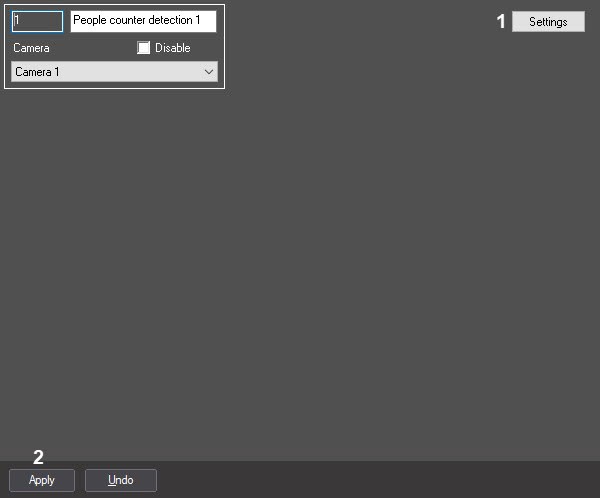
- Click the Settings button (1). The Detection settings window will appearopen.
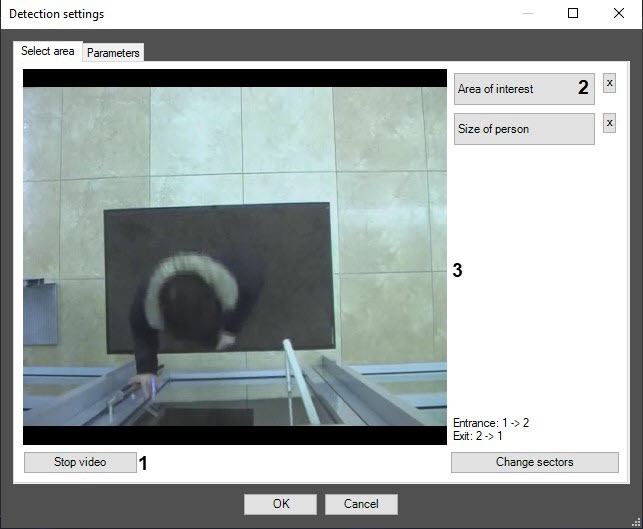
- Specify the area of interest and the approximate size of people in the video image:
- Click the Stop video button to capture the video image (1).
- Click the Area of interest button (2).
Using the left mouse button, select the four corners of the area on the captured video image (3) to be analyzed. Only one area may be so designated. If a second area is specified, then the first area will be deleted.
| Info |
|---|
|
To remove a selected area, click the  button next to the Area of interest button. button next to the Area of interest button. |
| Info |
|---|
|
The area of interest is divided into two sections - sectors—1 and 2. If an object moves from sector 1 to sector 2, it is logged as the entry of a visitor; if . If the visitor moves from sector 2 to sector 1, it is logged as an exit. |

- Set the desired required size, shape and position of the sectors in the area of interest by moving their boundaries (1).
- If you want to swap sectors 1 and 2, click the Change sectors button (2).
- Set the approximate person size as follows:
- Click on the Size of person button (3).
On the captured video image, set the approximate person size. To do this, use the left mouse button to select a rectangular area (4).
| Info |
|---|
|
To remove the person size, click the button next to the Size of person button. |

- Setting the module parameters:
- Go to the Parameters tab in the Detection settings window (1).
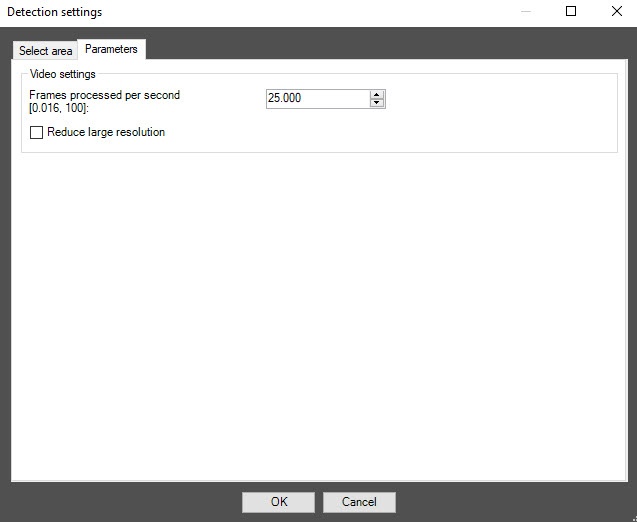
- In the Frames processed per second ([0.016, 100)] field (2), set the number of frames per second that will be processed by the detection tool.
- Set the Reduce large resolution checkbox to create and process the new frame consist consisting of even lines of the initial frame (3).
- Click the OK (4) button to to save the changes and return to the control settings panel of the People counter detection.
- On thePeople counter detection control settings panel, click click the Apply (2) button.
Configuring the People counter detection module is complete.


