
Go to documentation repository


Page History
To create a local archive, do the following:
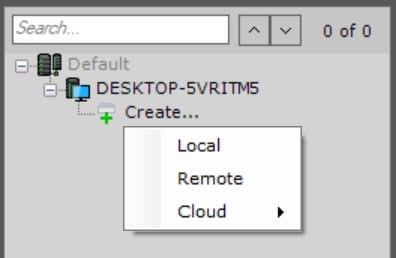
In the branch of the Server object corresponding to the computer on which you need to organize an archive, click the Create link.

Info title Note You can also create an archive by selecting the matching command in the context menu of the Server object (the menu can be brought up by right-clicking the name of the Server).
- Select the Local archive type.
- Specify the name and color of the archive Highlight the New archive link which appears (1).
 Set
Set - Select the archive storage type to Local (2):
- block, if you need low latency and high performance in various situations.
- Specify the name and color of the archive (3).
- For example, for tasks with a large read and write load;
- object, if you need to process large amounts of unstructured data, unlimited storage, scalability and complex metadata management to ensure overall performance. For example, to analyze big data.

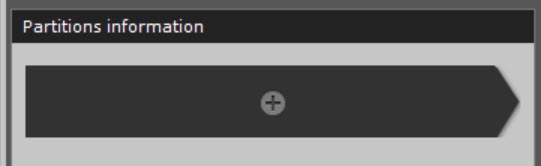
Configure archive volumes.
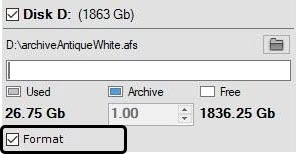
- For Set the checkboxes next to the disks that you want to include in the archive, select the corresponding check boxes.
If a disk does not have a file system, the disk can contain an archive volume in the form of a partition. In this case, select the Formatting check boxset the Format checkbox. This will format the disk using the SolidStore file to the SolidStore file system developed by AxxonSoft (see General information of SolidStore file system).


Infonote title NoteAttention! - When selecting the disk on which to place the archive volume, take into account its space. If the archive is completely full, the oldest data will be overwritten with new data.
- The file system on the disk can be erased by using the standard Disk Management utility in Windows.
- For the manual for starting and using the utility
- , see Microsoft website.
- Deleting the file system on the disk in the
- Disk Management utility consists of the following:
- Delete the volume.
Create- delete logical disk;
- create a new
- disk in the resulting unformatted area.
- assign a letter to the
- disk, but do not format it.
The system disk cannot be completely allocated for an archive.
Note title Important! When selecting the disk on which to place the archive volume, take its size into account. If the archive is completely filled, the oldest data will be overwritten with new data.
Info title Note Note that you - You cannot create an archive volume as a partition on a removable disk, since its partition cannot be erased through the Disk Management utility.
On disks that have a file system, you can store an archive volume in the form of a file.
For this archive volume, you must enter a file size (in gigabytes) or set it by moving the slider. The size of the archive file must be more greater than or equal to 1 GB. For the Fat32 file system, the maximum archive size is 4 GB.
Note title ImportantAttention! title Note- If the archive is completely
- full, the oldest data will be overwritten with new data.
Info - By default, the file name will be the same as the name of the archive, and the file will be located at the root directory of the disk. To change the name and/or location of the file, click the
-
 button.
- Click the Apply button.
If volumes are configured in the form of partitions, a dialog box is will be displayed, warning about formatting of the relevant system disks.

- Read through the list of partitions that will be formatted. If the list is correct, select I set the I have read the warning and realize the risk of losing important data checkbox, then click click the Format button. Otherwise, click click the Cancel to button to return to the archive settings.
...
Overview
Content Tools