
Go to documentation repository


Page History
| Section | |||||||||||||||||||||
|---|---|---|---|---|---|---|---|---|---|---|---|---|---|---|---|---|---|---|---|---|---|
|
Function
The main control panel is a basic element of the Axxon PSIM software control interface.
Functions
...
The main control panel is placed in the top right corner of the screen.
In a dormant state, the panel is automatically removed from the screen. To return it, simply move the cursor to the top right corner, then the main program control panel will appear on the screen.
Elements of the main panel interface of Axxon PSIM software are are described below.
- Information box. The information window is used for prompts on program operation and error messages.
If Axxon PSIM operates in the Demo mode, then there will be the corresponding message in this box.
If Axxon PSIM runs with a user logged in, the user's last name is displayed in the information box.
The messages in the information box change every several seconds. Screens button The Interfaces button
 . Chooses and displays screens and some other It is used to select and display interface windows on the desktop. The Close all command item hides all visible program windows.
The list may appear it two different ways depending on the number of the displays: if there are more than 50 of them, the list changes giving the ability to scroll itself by mouse wheel. Use the max_disp_menu_items registry key to change the threshold value (see Registry keys reference guide). On the figures below, see the list of screens with max_disp_menu_items = 10 and the number of screens 10 and 11 correspondingly, respectively.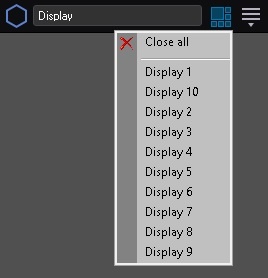
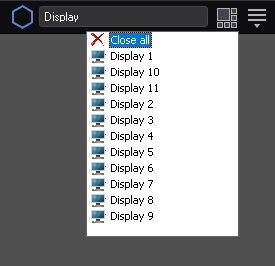
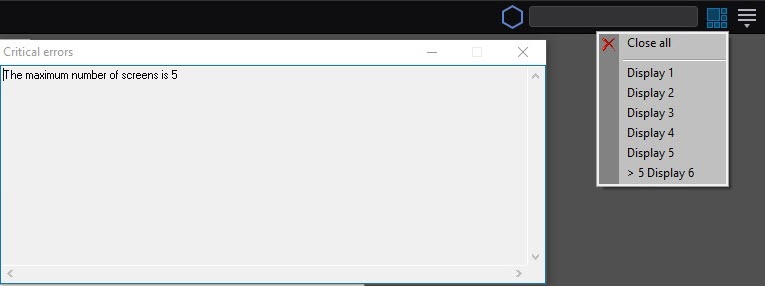
There are 10 displays in the list, so mouse scroll is not available There are 11 displays in the list, so mouse scroll will be available if the list size exceeds the size of the computer monitor. Also, the DISPLAY_MAX_NUM registry key may limit the number of displays assigned to one computer (500 by default). In this case, when more displays are assigned to the computer than allowed by the key, some of the screens are marked with > N in the list, where N is the maximum number of displays; the error message is displayed when such display is selected:
 The Execute button . Provides access to various program control functions: startup, logging out, program settings, manual launching of macros, calling up the debug window and displaying data on the current program version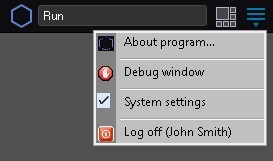
Description of hot keys which are used when the Main panel operation is given in the following table.
| Info | ||
|---|---|---|
| ||
These hot keys can be disabled using the RegisterF10andF11 registry key - —see the Registry keys reference guide. |
...
| Key | Description |
| F10 | Functions if all screens are hidden. The last displayed screen is shown while when clicking .the button |
| F11 | Functions if a screen is displayed while when clicking the button. Hides screen while when clicking. Clicking of this hot key is similar to selecting the Hide all item in the Execute menu of the Main control panel. |
Overview
Content Tools