
Go to documentation repository


Page History
| Section | |||||||||||||||||||||
|---|---|---|---|---|---|---|---|---|---|---|---|---|---|---|---|---|---|---|---|---|---|
|
Creation and configuration of the Video camerathe Camera object is done in the Hardware tab. The object objects tree of a video camera is generated automatically according to its functions which that are integrated into the Axxon One software package (the presence of alarm inputs, relay outputs, PTZ unitdevice, etc.).
| Info | ||
|---|---|---|
| ||
You can configure recording options for a camera the camera recording to the archive in the corresponding tab (see Configuring archives). |
Configuring the camera settings
When you have added a camera via the IP Device Discovery Wizard (see Adding and removing IP devices), you can edit the camera's parameters. The camera parameters are grouped as follows.
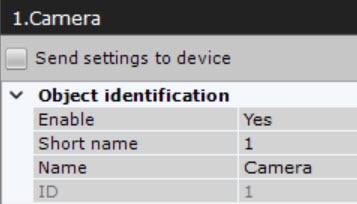
In the Object identification group, you can see the camera ID, and, if nesessary, you can enter a camera name/, a short name and text a comments.
| Info | ||
|---|---|---|
| ||
| ||
| ||
|
Also, you can disable the camera by selecting No in the Enable field.
| Note | ||
|---|---|---|
| ||
In terms of licensing, every camera enabled is one channelEvery camera enabled in the system (including analog cameras, see The IP Server Object) is a video channel in terms of licensing (see Axxon One licensing). Disabled cameras are not subject to licensing (see Licensing of the software product). If you run out of camera licenses, disable offline/unused cameras. |
...
The IP address (assigned automatically and can be changed if necessary).
Info Note - The port used to transmit data between the camera and the Axxon One VMS (this value is set to 80 by default, but can be changed if necessary). At first Initially, the port number is set through via the camera's Web interface.Camera positioning coordinates (latitude, longitude, azimuth).
- The MAC address.
- Manufacturer, model, driver version and current firmware.
- The number of the video channel (for an IP Server).
Device serial number (for Axis devices only, see Axis IP Devices).
...
- If you want to interrupt video streaming from the camera to the Server whenever it is not needed, select Yes for Break unused connections (1).
Conditional interruption of video transmission from a camera to the Server, if:- the video stream is not displayed on either Client or web client Web-Client layout;
- the stream is currently not being recorded into Video Footagearchive;
- the stream is currently not being processed by any detection tool.
- After starting the Client, the default setting is to display video only after the first I-frame (key frame) is received. If the stream comes with a relatively long GOP length (Group of Pictures) or GOV length (Group of Video Object Planes), i.e. the number of P- and B-frames between I-frames in the stream, the video may be not available for a minute. In this case, select Yes for the Low GOP keyframe rate setting (2). This will reduce the waiting time for video by pushing the preceding I-frame that can be stored in the memory buffer on the Server. In some cases, the I-frame will not be buffered, but in most cases this means that it will soon be received from the device.
...
To enable video buffering on Clients, set the buffer length in milliseconds in the Video buffering group.

This value should be between 50 and 1000 milliseconds. If the value 0 is selected, video buffering is disabled.
In the Camera settings Video stream settings group you can see video image parameters (contrast, brightness, color saturation, etc.). When configuring these, you can look up short parameters' their descriptions in Axxon One GUI interface. For more detailed information, please refer to the camera manual.

| Info | ||
|---|---|---|
| ||
If you set up a camera via its web page, you cannot edit the parameters in the VMS You cannot edit these parameters if you added the camera with the parameters that were set in the web interface (see Adding and removing IP devices). To configure the camera in the VMS, select these parameters in Axxon One, set the Send settings to device checkbox. |
You can configure fisheye cameras in the Panomorph group (see Configuring fish-eye cameras).

Select a standby / substitute camera from the current Axxon domain in the Alternative view list. The sub camera shows in the layout when the main camera is offlineIn the Alternative camera 1 field, you can specify any camera in the current domain that can replace this camera on the layout when it isn't connected.
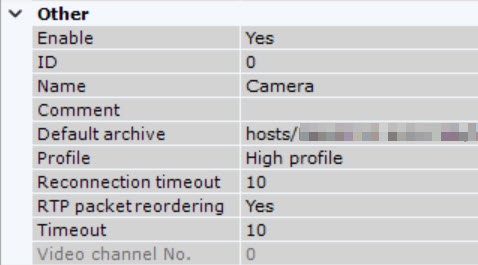
Then you can configure them to show the nearest cameras to the alerted one (see Configuring Alarmed cameras layout).
In a special case, when configuring an alarm layout (see Configuring Alarmed cameras layout), in these fields, you can specify the closest cameras this one for the simultaneous display.
Configuring video stream settings
You can configure video streams under the viewing tile Surveillance window. If If a camera supports multistreaming, you can configure two video streams separately: high High-quality video stream and low quality Low-quality video stream. If necessary, you can configure additional video streams using the Add video stream field. When creating an IP device with a high quality main video stream, a stream with a higher resolution is selected. To configure video streams, you should make sure that the Send settings to device checkbox is selectedset.

| Info | ||
|---|---|---|
| ||
In most cases, the following parameters are set for video streams: bit ratebitrate, compression rate, frame rate, and resolution. Detailed information on configurable parameters can be found in the official reference documentation for the video camera. |
...
| Info | ||
|---|---|---|
| ||
When changing a video stream to a stream that:
|
...
|
By default, to use the video stream when displaying in the Auto (GreenStream)/High quality/Low quality modes, the Yes value is set in the Use for GreenStream field. If you set the No value, the stream is excluded from display in Auto (GreenStream)/High quality/Low quality modes (see Selecting video stream quality in a Surveillance window (GreenStream)).
If you configure video streams in the camera web interface, it is necessary to set the real value of the expected frame rate in the corresponding field to correctly display the video stream status on the Health Board (see Viewing camera status).
You can also change the video stream settings by sending an HTTP request to the device (see the manufacturer's official documentation) using macros (see Executing a web query, Starting an external program on Servers, Starting an external program on Clients).
| Note | ||
|---|---|---|
| ||
You can select any video stream for recording into archive and displaying in the Surveillance window (see Selecting video stream quality in a Surveillance window (GreenStream), Configuring recording to an archive). |
| Info | ||
|---|---|---|
| ||
When some video stream parameters are changed, the video camera may automatically restart, in which case it will become unavailable for some time (depending on the video camera). |
Camera preview window
Image from the camera will be displayed in the preview window.
...
| Info | ||
|---|---|---|
| ||
When a stream is selected in the preview window, the settings for the relevant stream are displayed; . The settings for the other stream are hidden. |
...
Overview
Content Tools