
Go to documentation repository


Page History
...
- Choose the search type and set its parameters (see Search in an the archive of a single video camera).
On the Camera Search Panel, select the video cameras, the archive of which should be searched, by setting the corresponding checkboxes (see Camera Search Panel).
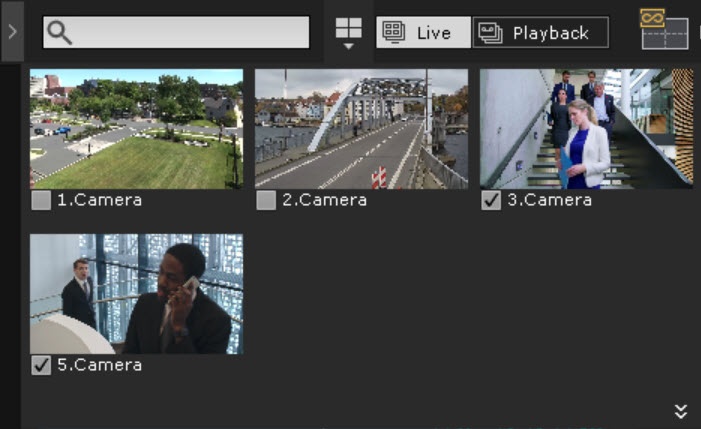
Info title Note By default, the checkbox is set next to the camera which was switched to the archive search mode. You cannot clear the checkbox next to this camera.
If you want to change the active camera in , it is necessary to reopen the archive search mode, clear the checkbox next to the current active camera and set it next to the required camera.
To search all video cameras in an Axxon-domain, open the Objects Panel (see Objects Panel) and set the checkbox next to the Axxon-domain.
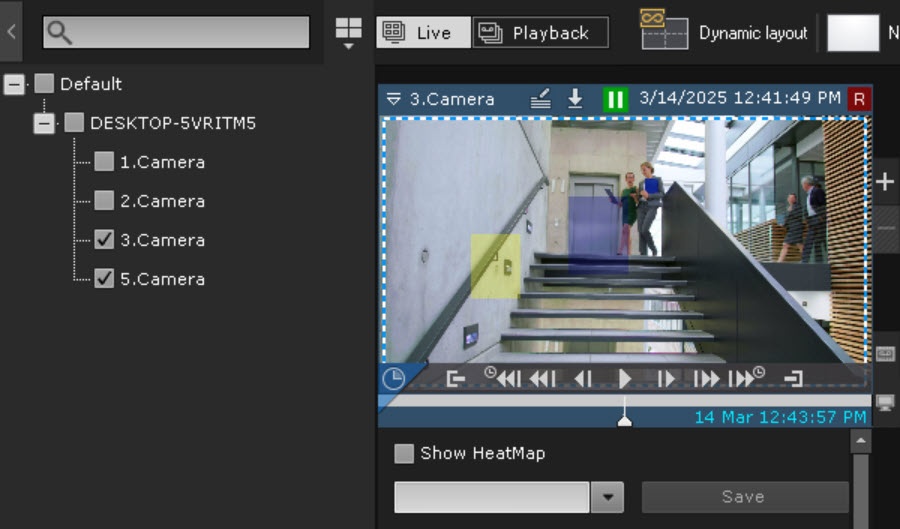
- Click the Search button.
If you are searching for faces (see Search for similar face) or for LPs (see LPR search Search by LPs) in the archive of several video cameras simultaneously, the interactive map (see Opening and closing the map) will display the approximate movement pattern of the found objects.
The time and date of recognition will be displayed next to the icon of each video camera.
...
Overview
Content Tools