
Go to documentation repository


Page History
Configuring the heat map
| Note | ||
|---|---|---|
| ||
At least one metadata source is required for displaying a heat map (for example, an object tracker — see tracker—see General information on metadata). |
...
- Select the type of search using metadata (1, see LPR search Search by LPs, Search for similar face, Forensic Search for Fragments fragments (MomentQuest)).
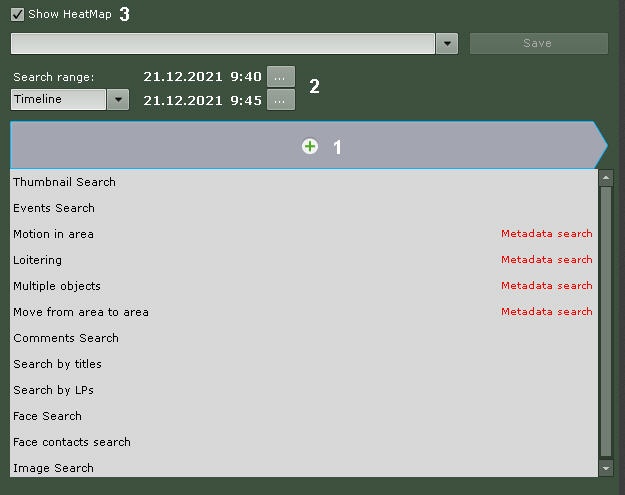
- Set the time period, according to the data from which the heat map should be generated (2, see Setting a search interval).
- Set the Show HeatMap checkbox (3).
- Click the Search button.
When the search is completed, a heatmap heat map will be displayed on the map:
...
where blue is low activity, red is high.
Configuring advanced heat map options
You can specify one or more additional parameters to improve the accuracy of search results. The number of possible additional parameters depends on the search criteria (see Configuring the search parameters).
To set additional search parameters, click the  button (see Configuring the search parameters). When setting additional parameters, only the zones of the heat map with objects detected motion will be displayed.
For example, setting the color range of an object allows you to more accurately highlight areas of the video where objects of the specified color are moving (see Configuring object color). In this case, the size of the heat map may change slightly while maintaining focus on moving objects.
Overview
Content Tools