


Page History
| Section | |||||||||||||||||||||
|---|---|---|---|---|---|---|---|---|---|---|---|---|---|---|---|---|---|---|---|---|---|
|
General information
Domain is a selected group of Axxon One Servers.
| Tip |
|---|
Connecting a domain
To connect a domain to AxxonData, do the following:
- Click the
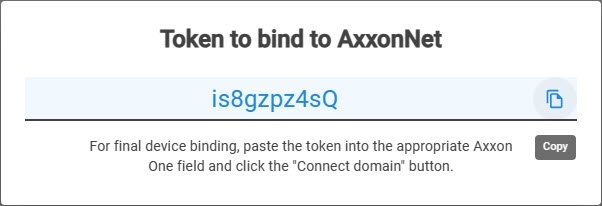
 button in the upper right corner on the Domains tab and copy the token to bind to the domain.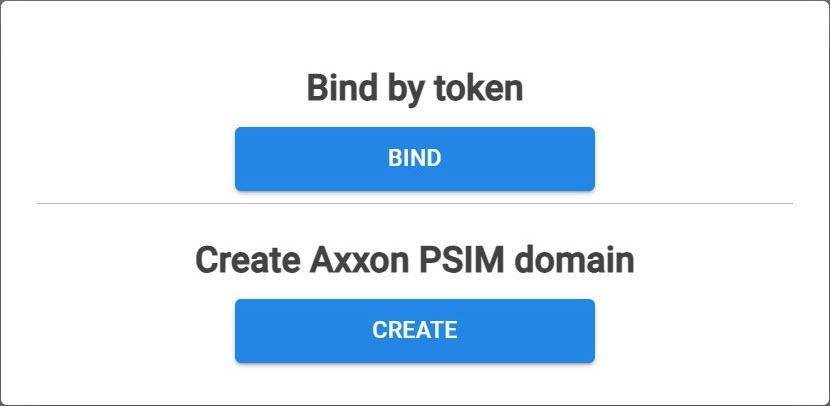
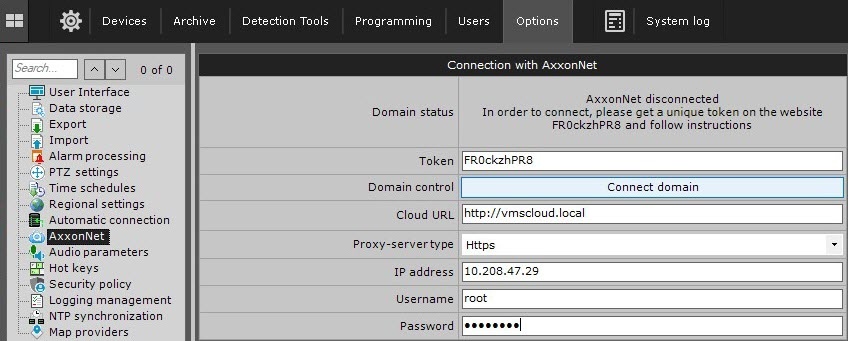
- In Axxon One, select Settings → Options → AxxonNet.
- Paste the copied key to bind to AxxonData into the Token field.
- In the Cloud URL field, enter https://vmscloud.local/.
- From the Proxy-server type drop-down list, select the protocol type that you selected during installation (see Local AxxonData Reports subsystem in Linux OS, Local AxxonData Reports subsystem in Windows OS):
- Http
- Https
- Click the Connect domain button
To connect an Axxon-domain to AxxonNet, do as follows:
- When logged in AxxonNet, go to the Domains page and click Assign domain.

- Copy the security key. InAxxon One VMS, select Settings → Options (1) → AxxonNet (2).
- Paste the copied key into the Token field (3).
Enter the address of the target cloud service (4).
- If you are connected through a proxy Server:
- Select the proxy type (5).
- Set the proxy address (6).
- Enter the user name and password for connecting to the proxy Server (7).
- Click Connect domain (8).
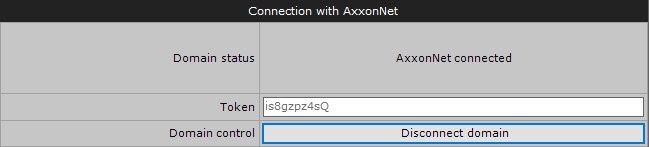
If the connection is successful, the status in
...
the Axxon One
...
will change to AxxonNet connected.
...
To disconnect AxxonNet from the Axxon- domain from AxxonData, click the Disconnect Axxon-domain.domain button.
If several Axxon- domains with identical names are connected to AxxonNet AxxonData, a unique sequential number will be added to each of the names listed on the Domains page.the Domains tab. If there is no connection with the Server, the domain is highlighted in red color.
Editing a domain name
To change a domain name in AxxonData, do the following:
- On the Domains tab, click the
 button next to the corresponding domain and select Rename.
- Enter a new name and click the APPLY button. You can use up to 100 characters in the domain name. If you exceed the number of characters, the message Name too long will be displayed.

To cancel the changes, click the CANCEL button.
The domain name will change only in AxxonData. The name will remain the same in Axxon One.
Deleting a domain
To delete a domain from AxxonData, do the following:
- On the Domains tab, click the button next to the corresponding domain and select Delete.
- In the window that opens, click the YES button.

To cancel the deletion, click the NO button.
The domain will be deleted only from AxxonData. The domain will remain in Axxon One.