
Go to documentation repository


Page History
...
You can configure the camera recording to the archive in the corresponding Archive tab (see Configuring archives).
...
In the Object identification group, you can enter a camera name , and a short name and a comments.
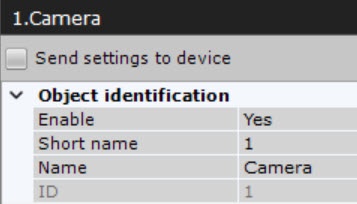
By default, the short name is a camera's ID. The full name of the video camera in the objects tree is displayed in the <Short name>.<Name> format. You can use camera's short name in hotkeys (see Notes regarding hot key actions).
...
| Info | ||
|---|---|---|
| ||
You cannot edit these parameters if you added the camera in the Save current settings mode (i.e. with the parameters that were set in the web interface (, see Adding and removing IP devices). To be able to configure these parameters in Axxon One, you need to set the the Send settings to device checkbox checkbox. Once you set a checkbox for a video camera, the checkbox is also set on all its channels and child objects. |
In the Panomorph group, you can configure fisheye cameras (see Configuring fisheye cameras).
...
In a special case, when configuring an alarm layout (see Configuring Alarmed cameras layout), in these fields, you can specify the closest cameras this one for the simultaneous display.
Configuring video stream settings
You can configure video streams below the Surveillance window. If a camera supports multistreaming, you can configure two video streams separately: Main stream and Second stream. If necessary, you can configure additional video streams using the Add video stream field.
When creating an IP device with a main video stream, a stream with a higher resolution is selected. To configure video streams, you should make sure that the Send settings to device checkbox is set. Once a checkbox is set for an IP device, the checkbox is also set on all channels and child objects.
| Info | ||
|---|---|---|
| ||
In most cases, the following parameters are set for video streams: bitrate, compression rate, frame rate, and resolution. Detailed information on configurable parameters can be found in the official reference documentation for the camera. |

| Info | ||
|---|---|---|
| ||
When changing a video stream to a stream that:
|
By default, to use the video stream when displaying in the Auto (GreenStream)/High quality/Low quality modes, the Yes value is set in the Use for GreenStream field. If you set the No value, the stream is excluded from display in Auto (GreenStream)/High quality/Low quality modes (see Selecting video stream quality in a Surveillance window (GreenStream)).
If you configure video streams in the camera web interface, it is necessary to set the real value of the expected frame rate in the corresponding field to correctly display the video stream status on the Health Board (see Viewing camera status).
You can also change the video stream settings by sending an HTTP request to the device (see the manufacturer's official documentation) using macros (see Executing a web query, Starting an external program on Servers, Starting an external program on Clients).
| Note | ||
|---|---|---|
| ||
You can select any video stream for recording into archive and displaying in the Surveillance window (see Selecting video stream quality in a Surveillance window (GreenStream), Configuring recording to an archive). |
| Info | ||
|---|---|---|
| ||
When some video stream parameters are changed, the camera may automatically restart, in which case it will become unavailable for some time (depending on the camera). |
Camera preview window
Image from the camera will be displayed in the preview window.
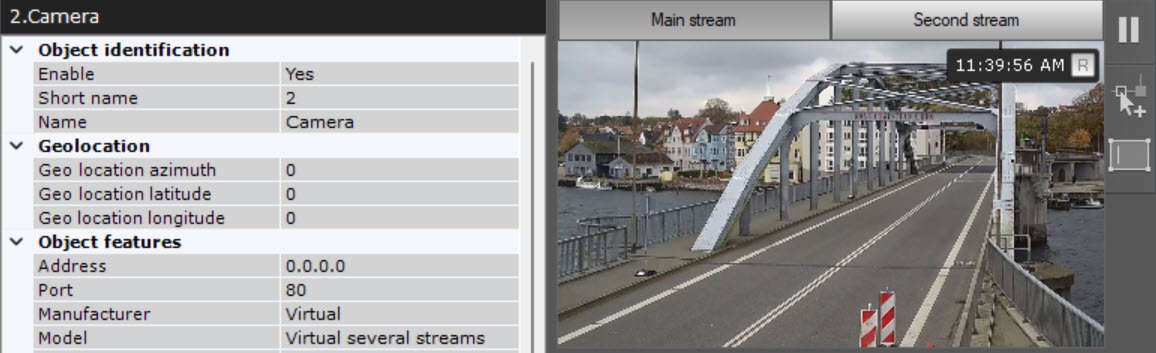
Camera preview window
The preview window displays the video image from this camera.
If the camera supports simultaneous transmission of several video streams, then the Main stream, Second stream and other tabs will be available in the window, depending on the number of added video streams (see Configuring video stream settings)To switch between streams in the preview window, click the Main stream and Second stream tabs.
| Info | ||
|---|---|---|
| ||
|
...
Overview
Content Tools