
Go to documentation repository


Page History
...
If the device's IP address, Port, Manufacturer, Username and Password are set, the device model can be automatically detected by clicking the  button.
Adding devices to the configuration
...
Three modes are available for adding a device to a configuration. These are described in the following table.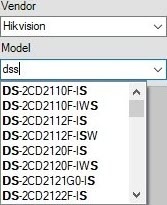
Device addition mode | Description | |
|---|---|---|
| 1 | Add device with default settings | The IP device is added to the configuration with the default settings (the default settings are determined by Axxon One itself). Adding a device in this mode will change the current settings of the device. |
| 2 | Add device with current settings | The IP device is added to the configuration with the current settings, as specified in the web interface. |
| 3 | Add device with template settings | The IP device is added to the configuration with the settings that have been previously specified for a device of the same model in the configuration. Select a device of the same model (the "template device") in the list.
|
Configuring IP device settings
...
When you add a device to the system, the Default permissions will be applied, which are configured for each role (see Configuring user permissions).
Removing IP devices
To remove IP devices, select one or more objects in the hardware tree by left-clicking (while holding down the Ctrl key) and click the Delete button.
Overview
Content Tools