
Go to documentation repository


Page History
The toolbar of the Editor-Debugger toolbar utility is used for calling to call the frequently used functions of the utility.
The toolbar operates in two modes: when the script control buttons are active, or when the debugger debugging window control buttons are active.The The mode depends on the currently active tab of the Editor-Debugger utility: either the Script Debug/Edit Debug-edit script tab for editing scripts, or the the Script Messagesmessages tab for viewing messages in the debugger debugging window.
Figure shows Interface of the toolbar of the Editor-Debugger utility in the script editing mode.:
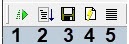
Table shows Description of the elements interface of the toolbar of the Editor-Debugger utility in the script editing mode.:
Number in the image | Parameter name | Parameter description | № | Element name | Element type | Description | Units | Default value |
1 | Test run | |
Runs the script | ||
on a test event | - | - | - |
2 | Test run in third-party | |
debugger | Button | |
Runs the script | ||
on a test event using the third-party debugger | ||
- | - | |
3 | Save | |
Saves the script to the Script system object | - | -|
- | ||
4 | Edit test event | Button |
Opens the dialog window for editing test events | - | - | -
5 | Summary information | Button |
Opens the Thread | ||
Information window | ||
, which displays | ||
the system, test and | ||
user messages related | ||
to the | ||
script | - | - | - |
Figure shows the toolbar in the script debugging mode.
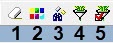
Table shows elements of the toolbar in the script debugging mode.
being debugged |
Interface of the toolbar of the Editor-Debugger utility when working with the debugging window:
Description of the interface of the toolbar of the Editor-Debugger utility when working with the debugging window:
Number in the image | Parameter name | Parameter description | ||||
1 | Clear | Clears the Description field of the debugging window | ||||
2 | Highlight | Opens the window used to specify words (or other character sequences) in strings containing them, which you want to highlight in the Description field of the debugging window | ||||
3 | Search | Searches for a word (or other character sequences) in the Description field of the debugging window | ||||
4 | Set filter | Opens the window used to enable and configure a filter. The strings that contain (don't contain) the specified words must be included in the debugging window (or excluded from it) | ||||
5 | Apply filter | Applies the created filter | ||||
№ | Element name | Element type | Description | Units | Default value | Value range | 1 | Clear | Button | Clears the Description field in the debugger window | - | - |
2 | Colors | Button | Opens the window allowing to specify the words that a line should contain to be highlighted in color | - | - | - |
3 | Search | Button | Searches for a word in the Description window | - | - | - |
4 | Set filter | Button | Opens the window allowing to set the filtering criteria for the messages in the debugger window. | - | - | - | 5 | Apply filter | Button | Applies the current filter | - | - | -
Overview
Content Tools