
Go to documentation repository


Page History
To create an access level, do the following:
- Go to the Access levels tab of the Access Manager window.

There are two ways to you can create a new access level:
- Right-click in the free area of the access level list and select Create root level item (1) in the functional function menu. In this case, the access level will be created in the root list of access levels.

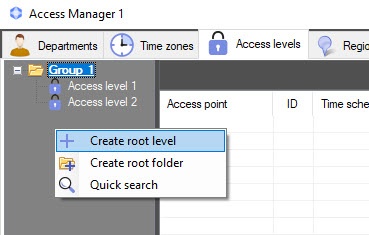
- Right-click the folder and select Create access level item (1). In this case, the access level will be created in the selected folder.

- Right-click in the free area of the access level list and select Create root level item (1) in the functional function menu. In this case, the access level will be created in the root list of access levels.
- If you select any of the commands, the Edit access level window will open, enabling you with . In the window, do the following actions:

In the Name field (1), enter the name of the access level.
Info title Note The name should must be unique. If an access level with the same name has already been created in the system, then the attempt to save will fail and a corresponding message will be displayed. Also, the name should must not contain the following characters: < | >.
In the free area of the list of access rules (2), add a rule that links the access point with the time zoneschedule:
Right-click on in a free area of the list of access rules and in the Add link of another type functional function menu that opens, select the required reader type from the list.

If there is only one access point of this type, or if there is only one available access point from several access points of the same type, then it will be added automatically.
If there are several access points of this type, then the Search access point window will open, which will display all available access points of this type.

To search and select an access point, do the following:
Info title Note The suitable access points are searched automatically as you specify the search parameters. The search is case insensitive. To search and select an access point, do the following:
- Select type of access point from the Type
- drop-down list
- (1). The default value is All types of access points.
- Select the
- Select the location of the access point from the Region drop-down list if it's required (3).
- value from the Area drop-down list (2) to search for an access point by area.
- Select the value from the Region drop-down list (3) to search for an access point by region.
- Select the value from the Exit region drop-down list (4) to search for an access point by exit region.
- Select the value from the Entry region drop-down list (5) to search for an access point by entry region.
- Enter the name of the
- access point or its part in the Name
- field (6) to search for an access point by its name.
- Enter the ID of
- the access point in
- the ID field (7) to search for an access point by its ID.
- After completing the selection of access points, click the OK button (
- 8).
- To select an access point from the list of available access points, double-click on the required object.
To select all available access points of this type at once, right-click on the parent object to open the Select all visible functional function menu (1).

- You can deselect all selected access points by right-clicking on the parent object to open the Deselect all visible functional function menu (1).

Info title Note - The Select all visible and Deselect all visible commands can be applied only to those access points that are currently displayed in the list of access points.
- Selected access points are highlighted in bold in the list.
You will go back to the Edit access level window. The panel for configuring the access level will be displayed at the bottom.
Access levels have two types of display: Tree and List.
The tree of access levels looks like this.
The list of access levels looks like this.
 button
  button (2) (the Search access point window will open) and go to step step 3bii. You can also open the search window using the Add
  button (13) , or by right-clicking on the selected access point to open the context menu.

| Info | ||
|---|---|---|
| ||
To delete all selected access points, click the |

From the Time schedule drop-down list (35), select the time zone schedule during which the access through the selected access point will be allowed to users with the configured access level.
If it is necessary to search for the time zoneschedule, click the button (46) (see Working with the Search for time zone window).
| Info | ||
|---|---|---|
| ||
Time zones schedules are created and configured on the the Time zones tab of the Access Manager window - window—see the Working with time zones in the Access Manager software module section. Also it's possible to use . You can also use the system time zones "Always" and "Never". |
If it's not required to send access cards to a controller after presenting a user presents an access card by user, set the Do not load checkbox (79).
| Note | ||
|---|---|---|
| ||
Functions of arming, disarming and sending access cards should to a controller must be supported by hardware. |
| Info | ||
|---|---|---|
| ||
Function of the Do not load checkbox can differ depending on the integration module in that you use. For example, in PERCo-S-20 integration this checkbox enables commission mode. |
Click the Save button (810).
As As a result, the created access level will be displayed in the list of access levels.

| Note | ||
|---|---|---|
| ||
When the user configuration is written to the controller/terminal, only those users will be written whose access level contains at least one access point of the corresponding controller/terminal. For example, if a user has an access point of terminal 1 specified in the access levels, but no access point of terminal 2 is specified, then this user will be written only to terminal 1. |
...
Overview
Content Tools