...
Set the Generate event on appearance/disappearance of the track checkbox to generate an event when an object (track) appears in the frame and disappears from the frame.
| Info |
|---|
|
The track appearance/disappearance events are generated only in the debug window (see Start the debug window). They are not displayed in the Event viewer. |
- Set the Show objects on image checkbox to highlight the detected object with a frame when viewing live video.
Set the Save tracks to show in archive checkbox to highlight the detected object with a frame when viewing the archive.
| Info |
|---|
|
This parameter does not affect the VMDA search and is used just for the visualization. For this parameter, the titles database is used. |
- Set the Model quantization checkbox to enable model quantization. By default, the checkbox is clear. This parameter allows you to reduce the consumption of the GPU processing power.
| Info |
|---|
|
- AxxonSoft conducted a study in which a neural network model was trained to identify the characteristics of the detected object. The following results of the study were obtained: model quantization can lead to both an increase in the percentage of recognition and a decrease. This is due to the generalization of the mathematical model. The difference in detection ranges within ±1.5%, and the difference in object identification ranges within ±2%.
- Model quantization is only applicable for NVIDIA GPUs.
- The first launch of a detection tool with quantization enabled may take longer than a standard launch.
- If GPU caching is used, next time a detection tool with quantization will run without delay.
|
- From the Object type drop-down list, select the object type for analysis:
- Human—the camera is directed at a person at the angle of 100-160°;
- Human (top-down view)—the camera is directed at a person from above at a slight angle;
- Vehicle—the camera is directed at a vehicle at the angle of 100-160°.
- By default, the standard (default) neural network is initialized according to the object selected in the Object type drop-down list and the device selected in the Device drop-down list. The standard neural networks for different processor types are selected automatically. If you use a custom neural network, click the
 button to the right of the Tracking model field and in the standard Windows Explorer window, specify the path to the file.
- From the Device drop-down list, select the device on which the neural network will operate: CPU, one of NVIDIA GPUs, or one of Intel GPUs. Auto (default value)—the device is selected automatically: NVIDIA GPU gets the highest priority, followed by Intel GPU, then CPU.
- From the Process drop-down list, select which objects must be processed by the neural network:
- All objects—moving and stationary objects;
- Only moving objects—an object is considered to be moving if during the entire lifetime of its track, it has shifted by more than 10% of its width or height. Using this parameter can reduce the number of false positives;
- Only stationary objects—an object is considered stationary if during the entire lifetime of its track, it has shifted by no more than 10% of its width or height. If a stationary object starts moving, the detection tool triggers and the object is no longer considered stationary.
- From the Camera position drop-down list, select:
- Wall—objects are detected only if their lower part gets into the area of interest specified in the detection tool settings.
- Ceiling—objects are detected even if their lower part doesn't get into the area of interest specified in the detection tool settings.
Selecting the area of interest
- Click the Settings button. The Detection settings window opens.
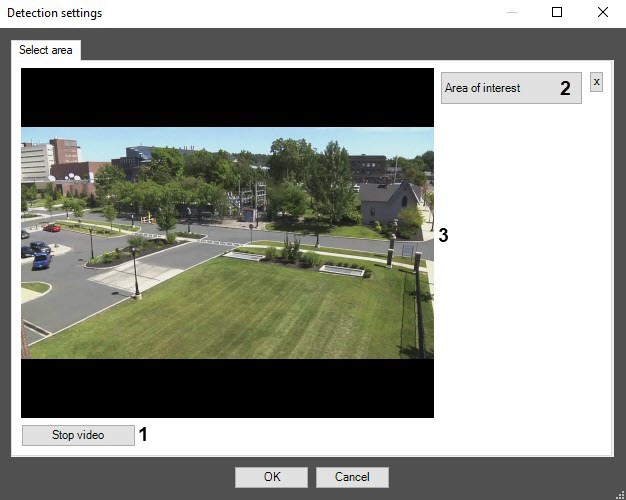
- Click the Stop video button (1) to pause the playback and capture the frame.
- Click the Area of interest button (2) to specify the area of interest. The button will be highlighted in blue.

- On the captured frame, sequentially set the anchor points of the area (1), in which the objects will be detected. The rest of the frame will be faded. You can add only one area of interest. To delete an area, click the
 button. If you don't specify the area of interest, the entire frame is analyzed.
 - Click the OK button (2) to close the Detection settings window and return to the settings panel of the Neurotracker object.
...
- Go to the Neurofilter tab on the settings panel of the Neurotracker object.

- Set the Enable filtering checkbox to enable neurofilter. By default, the checkbox is clear.
- By default, the standard (default) neural network is initialized according to the device selected in the Device drop-down list. The standard neural networks for different processor types are selected automatically. If you use a custom neural network, click the button to the right of the Tracking model field and in the standard Windows Explorer window, specify the path to the file.
- From the Device drop-down list, select the device on which the neural network will operate: CPU, one of NVIDIA GPUs, or one of Intel GPUs. Auto (default value)—the device is selected automatically: NVIDIA GPU gets the highest priority, followed by Intel GPU, then CPU.
| Note |
|---|
|
- The device for the neurofilter must match the device specified for the neurotracker in the Device drop-down of the main settings. If you select Auto, the neurofilter will run on the same processor as the neurotracker, according to the priority.
- It may take several minutes to launch the algorithm on NVIDIA GPU after you apply the settings.
|
Click the Apply button to save the changes.
| Info |
|---|
|
If necessary, create and configure the Neurotracker NeuroTracker VMDA detection tools on the basis of the Neurotracker object. The procedure of creating and configuring the Neurotracker NeuroTracker VMDA detection tools is similar to creating and configuring the VMDA detection tools for a regular tracker. The only difference is that it is necessary to create the Neurotracker NeuroTracker VMDA detection tools on the basis of the Neurotracker object, and not the Tracker object (see Creating and configuring the VMDA detection). Also, if you select the Staying in the area for more than 10 sec detector type, the time the object stays in the zone, after which the Neurotracker NeuroTracker VMDA detection tools are triggered, is configured using the LongInZoneTimeout2 registry key, not LongInZoneTimeout. The procedure of configuring the alarm generation mode for any type of VMDA detection tools is similar to the VMDA detection tools for a regular tracker using the VMDA.oneAlarmPerTrack registry key (see Registry keys reference guide).  Image Added Image Added
|
Configuration of the Neurotracker module is complete.
...


