
Go to documentation repository


Page History
In the video surveillance Surveillance window, on the layout, you can display the detection tool icon and the number of objects in the detection area (see Configuring a detection area). The number of detected objects can be displayed for the Neurocounter, following detecttion tools:
...
...
- .
Configure the display of the number of detected objects as follows:
- Go to layout editing mode with the selected video camera (see see Switching to layout editing mode).
- Move the detection tool icon to an arbitrary location in the cell.
- If it is necessary to , adjust the font, click the the
 button.
 - To add text, click on the gray area.
- In an arbitrary place in the gray area, specify a template for displaying the number of objects in curly brackets:
- {0}—integer;
- {0.0}—fractional number with 1 digit after the point;
theInfo title Note The template expands to {0.0000} to display the number with 4 digits after the point. If
user text contains more digits after the point than received from the detection tool, the missing low-order digits are filled with zeros.
Info title Note If If a template for displaying the number of objects is not added, then the number can be displayed as an integer or a fraction (with an accuracy of no more than 4 digits after the point).
- If it is necessary to , scale up/down the text and the sensor icon, click the the
 button.
 - Save the layout (see Exiting Layout Editing mode).
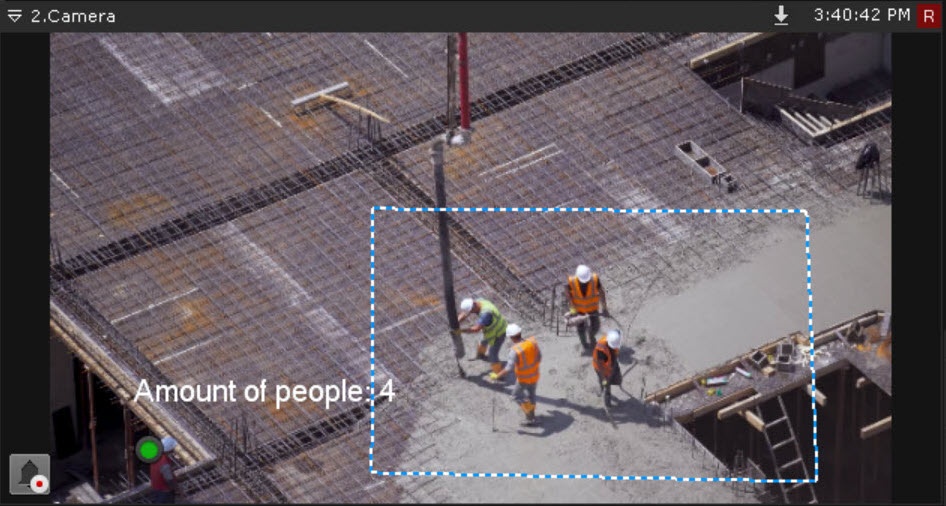
After saving the layout, the detection tool icon and the number of objects will be displayed in the video surveillance Surveillance window.
An example of setting up the configured display of the number of objects in the detection zone area based on a people the People counter:

Overview
Content Tools