
Go to documentation repository


Page History
Having If you have appropriate user rights, you can remotely manage monitors on remote Clients connected to a Server within the Axxon-domain (see see Creating and configuring roles).
...
- Add a layout to an additional monitor of a remote Client.
- Select another layout or a camera on the an additional monitor.
- Edit a layout on the main or additional monitor.
- Shut down the an additional monitor.
To display a layout on the additional monitor of a remote Client, click anywhere on a monitor diagram of the required Client 's monitor layout diagram, on the monitor panel (see Monitor panel) and select a non-distributed video monitor (see Monitor panel).
| Info | ||
|---|---|---|
| ||
You can add a layout to the additional monitor of a remote Client in the same way as you do it for a local Client Client (see Managing monitors on a local Client). |
To select another layout on a remote Client's monitor, do the following:
- Select the desired required layout on the local Client (see Selection and Slideshow of LayoutsClient (see The Layouts panel).
- Click anywhere on a monitor diagram of the remote Client's monitor layout diagram, and then on click the icon of the required monitor's view.
The selected layout will be displayed on a selected monitor of the remote Client.If If a single camera is displayed on the remote Client's additional monitor, you can switch to another camera by selecting it through on the screen of the local Client.
To edit It is possible to temporarily display the layout on the monitor of the remote Client's main or additional monitor layout. For this, do the following:
Select (see The Layouts Panel) or configure (see Creating and deleting layouts) the desired required layout on the local Client.
Click anywhere on a monitor diagram of the remote Client's monitor layout diagram.
- Click the
 button on the diagram of the main or secondary additional monitor layout diagram.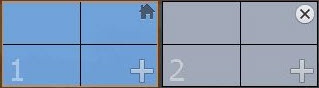
The layout will be available for the remote Client's layout is saved, and will be available after rebooting the Client.Client until the Client restarts or until you switch to a different layout. The layout will only be saved if it is shared with the role of the remote Client (see Share Layouts) or belongs to the user of the remote Client.
Using the Objects Panel (see Objects Panel), you can change the cameras You can change the set of cameras to be displayed on the main or additional monitor using the Objects Panel; these of the remote Client. These changes are not saved, and the initial layout is restored after rebooting the Client restarts. To do it, follow the steps below For this, do the following:
- Open and lock the Monitor Panel panel (see Monitor panel).
- Open the Objects Panel (see Objects Panel).
- Using the Ctrl or Shift keys, select elect one or several cameras on the panelObjects Panel using the Ctrl or Shift keys
- .
- Left-click on any selected camera.
- Drag the camera icon onto a desired cell on the main or additional monitor's layout diagram.
- Release the mouse button.
...
Overview
Content Tools