
Go to documentation repository


Page History
...
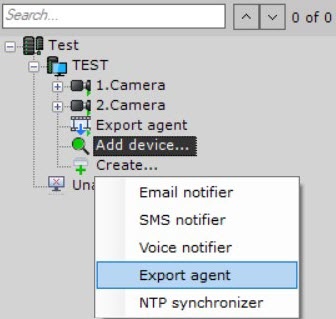
To create and configure the Export agent, do the following:
In the device hardware list, click Create and select Export agent.
- To enable the Export agent, set select Yes for in theEnable parameter(1).

- In the relevant field, set the object name (2).
- If necessary, you can specify a new name for the Export agent in the Name parameter.
- By default, the Burn titles parameter is disabled. To burn titles on JPEG images and AVI video, select Yes.
- In the Folder for frames and Folder for video parameters, specify full paths to folders for storing exported frames and videos. If you specify network folders, you must also specify the Username and Password Specify the full paths to the folders that will store the exported frames and video recordings (3). For the network folders, enter the username and password of the user who has the access to the NAS (4).this network storage.
- In the Frame frequency parameter, select the frame rate of the final video stream:
- Original frame frequency (default);
- 1/2—frame rate of the exported video is two times lower than the original frame rate;
- 1/4—frame rate of the exported video is four times lower than the original frame rate;
- 1/8—frame rate of the exported video is eight times lower than the original frame rate;
- In the Image file format parameter, select the frame format for export:
- JPEG (default);
- PDF.
- In the Maximum file size parameter, specify the maximum file size of the exported video in megabytes. When the specified size is reached, a new file is created. The default value is 4095.
- In the Video codec parameter, select the codec of the final video stream:
- MPEG4;
- MGPEG;
- H.264;
- Default.
- In the Video file format parameter, select the video format for export:
- MKV (default);
- AVI;
- EXE;
- MP4.
- In the Video quality parameter, select the quality of the final video stream:
- Minimum level;
- Low level;
- Medium/Low level;
- Medium level (default);
- Medium/High level;
- High level;
- Maximum level.
- Specify the location of the watermark. To do this, specify the border of the watermarked area on each side of the frame as a percentage of the frame size in the Border-bottom, Border-left, Border-right, Border-top parameters. The values must be in the range [0, 1]. The top left corner must be taken as the coordinate origin point.
For example, with the default values (Left 0, Top 0, Right 1, Bottom 1), the specified area takes the entire frame, and the watermark is located in the center of the image. To place the watermark in a corner, specify the following values:- for the top-left corner—Left 0, Top 0, Right watermark width as a percentage of the frame width, Bottom watermark height as a percentage of the frame height;
- for the bottom-left corner—Left 0, Top 1 minus watermark height as a percentage of the frame height, Right watermark width as a percentage of the frame width, Bottom 1;
for the top-right corner—Left 1 minus watermark width as a percentage of the frame width, Top 0, Right 1, Bottom watermark height as a percentage of the frame height;
for the bottom-right corner—Left 1 minus watermark width as a percentage of the frame width, Top 1 minus watermark height as a percentage of the frame height, Right 1, Bottom 1.
- In the Opacity (%) parameter, specify the watermark opacity as a percentage: 1—opaque, 0—fully transparent. The value must be in the range [0, 1].
- In the Watermark image parameter, select a watermark file. Only images in PNG format are allowedSpecify other export options (5). See their description in Configuring export options.
- Click the Apply button.
Creating and configuring the Export agent is now complete.
Overview
Content Tools