
Go to documentation repository


Page History
| Section | |||||||||||||||||||||
|---|---|---|---|---|---|---|---|---|---|---|---|---|---|---|---|---|---|---|---|---|---|
|
Distribution package
To get the current version, contact the AxxonSoft technical support.
The distribution package contains a setup.exe file.
Installation procedure
The Server (Administrator's workplace) is installed on the computer that will distribute updates as the Update Server. The Client (Workstations) is installed on each computer that requires automatic updates in the future (that is, on the Clients).
...
| Note | ||
|---|---|---|
| ||
You must run the installation files as a Windows Administrator. |
Installing the Update Server (Administrator's workplace)
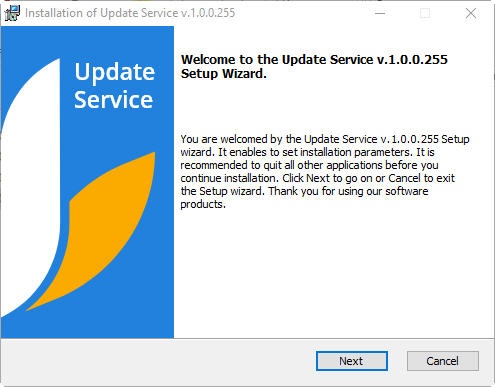
- Run the setup.exe file. An installation window opens, click Next:
- A window with the text of the license agreement opens. Read it and select I accept the terms of the License agreement and click Next:

Info title Note You can print the license agreement. To do this, click Print.
- A window for selecting the installation type opens. To install the Update Server separately, select Server (Administrator's workplace) and click Next:

- A window for selecting the installation path for the Server (Administrator's workplace) opens. By default, Server is installed in C:\ProgramData\UpdateServer:

You can change the installation path. To do this, click Browse and in the window that opens, select or create another folder and click OK:
After you select the installation path, click Next. - The installation process starts and progress is displayed in the installer window:
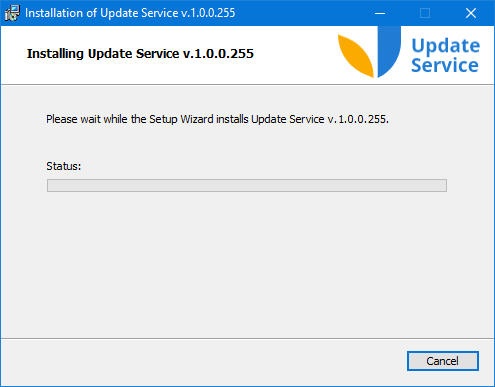
When completed, the Installation Complete window opens, click Finish.
As a result, the Server is installed in the selected folder and the Update Service shortcut appears on the desktop:

Installing the Client (Workstations)
The Client installation is similar to the Server installation described above: you must to run the setup.exe file and go through the same installation steps. The only difference is step 3, where you must select the Client (Workstations) installation type:
...
As a result of the Client installation, an icon appears in the system tray:

Installing Server and Client
To install both Server and Client on the same computer, do the following:
...
| Info | ||
|---|---|---|
| ||
When you run the Update Service for the first time, the IP address and port of the Update Server are automatically detected and written to the settings.json file. If necessary, you can change them. |
...
Overview
Content Tools