Versions Compared

Key

  • This line was added.
  • This line was removed.
  • Formatting was changed.

...

  1. Go to the settings panel of the VideoIntellect detection of prohibited direction object, which is created on the basis of the Camera object on the Hardware tab of the System settings window.
  2. In the Frames processed per second [0.016, 100] field, specify the number of frames that the detection tool processes per second. With a minimum value of 0.016, the video image is analyzed once per minute, with a maximum value of 100—once every one hundredth of a second. The To work with the detection tool, we recommend using the default value is of 12 FPS.
  3. In the Scale frame to (pix.) field, specify in the range 480-960 the size of the frame in pixels after scaling. The default value is 640.
  4. Set the Use GPU checkbox if it is necessary to use a graphics processor (NVIDIA GPU) when working with a neural network.
  5. Set the Show objects on image checkbox if it is necessary to highlight the detection zones with a red border on the Video surveillance monitor when a motion event is generated in the prohibited direction. The detection zones are specified in the detection tool settings on the Select area tab.
  6. From the Detection filtering drop-down list, select the filter that you want to use: Object filter, Object counting filter, Do not use filter (default). You can configure filters on the Postprocessing tab of the Detection settings window.
  7. Click the Configuration setup button. As a result, the Detection settings window opens.

...

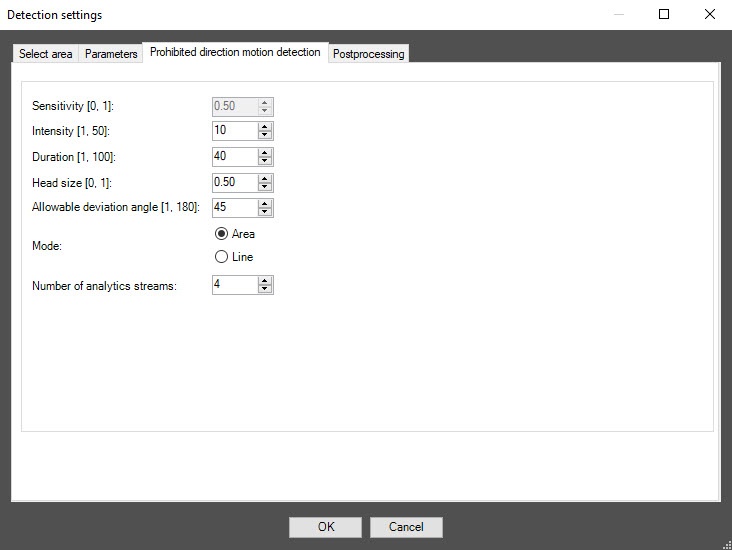
  1. Go to the Prohibited direction motion detection tab.
  2. In the Sensitivity (1-100) field, specify as a percentage in the range 0-100 the sensitivity of the detection tool to detecting moving objects in the detection zone. The higher the sensitivity, the less noticeable object can be detected. The default value is 50. If you select the Area mode in the Mode parameter, this setting is disabled.
  3. In the Intensity [1, 50] field, specify in arbitrary units in the range 150 how noticeable the object's movement in the detection zone must be for the detection tool to trigger. The default value is 10. If you enter a value out of range, it is automatically changed to the appropriate boder value. If you select the the Line mode in the Mode parameter, this setting is disabled.

  4. In the Duration [1, 100] field, specify in arbitrary units in the range 1100 the duration of the object’s movement in the prohibited direction. It can be used when analyzing dense passenger flows, when an object making its way in the opposite direction appears in the camera’s FOV only for short time intervals, and the rest of the time is hidden from view by the crowd. The default value is 40. If you enter a value out of range, it is automatically changed to the appropriate boder value. If you select the Line mode in the Mode parameter, this setting is disabled.

  5. In the Head size [0, 1] field, specify in the range 01 what part of the video image height is the human head. The default value is 0.50. If you select the Line mode in the Mode parameter, this setting is disabled.
  6. In the Allowable deviation angle [01, 180] field, specify in degrees in the range 01180 the permissible deviation from the direction of movement specified by the red arrow in the prohibited direction. The default value is 45.  If If you enter a value out of range, it is automatically changed to the appropriate boder value. If you select the the Line mode in the Mode parameter, this setting is disabled.
  7. In the Mode parameter, select Line if detection zone is determined by lines. The Area mode is selected by default—detection zone is determined by a polygon. The display of the Select area tab depends on the selected mode.
    Info
    titleNote

    When you change the mode, all settings return to default values on the Select area tab.

  8. In the Number of analytics streams field, specify the number of video streams that are used for neural network analytics. The default value is 4.
  9. To save the detection tool settings, click OK.
  10. Click the OK button to save the settings.

...