...
- Go to the settings panel of the VideoIntellect detection of camera state object, which is created on the basis of the Camera object on the Hardware tab of the System settings window.
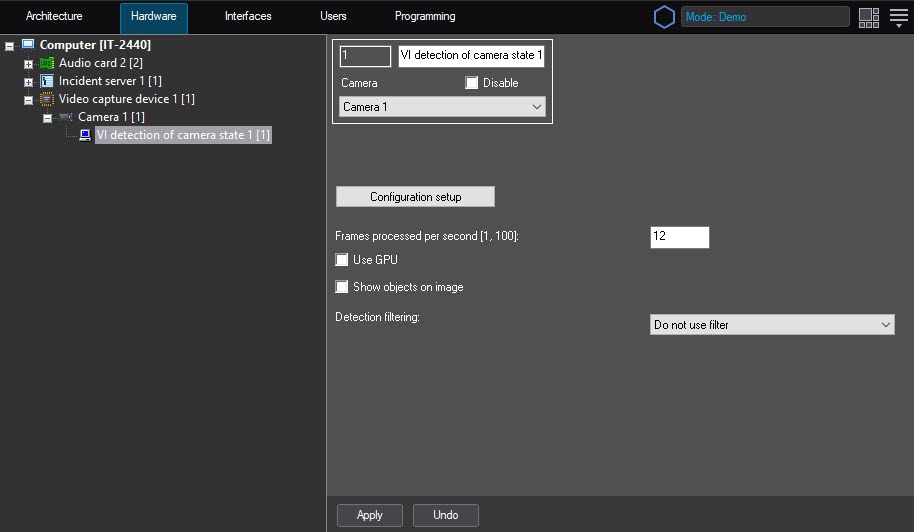
- In the Frames processed per second [0.016, 100] field, specify the number of frames that the detection tool processes per second. With a minimum value of 0.016, the video image is analyzed once per minute, with a maximum value of 100—once every one hundredth of a second. The To work with the detection tool, we recommend using the default value isof 12 FPS.
- In the Scale frame to (pix.) field, specify in the range 480-960 the size of the frame in pixels after scaling. The default value is 640.
- Set the Use GPU checkbox to use NVIDIA GPU when working with the neural network.
- Set the Show objects on image checkbox to highlight the detection zone with a red border on the Video surveillance monitor when a camera state change event is received.
- From the Detection filtering drop-down list, select the filter that you want to use: Object filter, Object counting filter, Do not use filter (default). You can configure filters on the Postprocessing tab of the Detection settings window.
- Click the Configuration setup button. The Detection settings window opens.
...
{"serverDuration": 189, "requestCorrelationId": "031ab70ab6ace5e6"}


