
Go to documentation repository


Page History
| Section | |||||||||||||
|---|---|---|---|---|---|---|---|---|---|---|---|---|---|
|
General information
The License Server main page displays key information about available modules, their expiration dates, and the number of occupied and free slots for each module.

In the upper-left corner, you can find the unique License ID (Key). Clicking the button next to the current license ID opens a list of other licenses if multiple licenses have been added to License Server. The key expiration date is displayed in the upper-right corner.
To log out of the License Server main page, click the  button in the upper-right corner of the screen. This will open the login window (see Logging in to the License Server web interface).
Uploading a new license
A license key is generated using the identifiers of the current machine and is intended for use with the Axxon One License Server. To upload a license:
- Click the UPLOAD LICENSE button
 .
. - In the window that opens, click BROWSE to select the required license file.
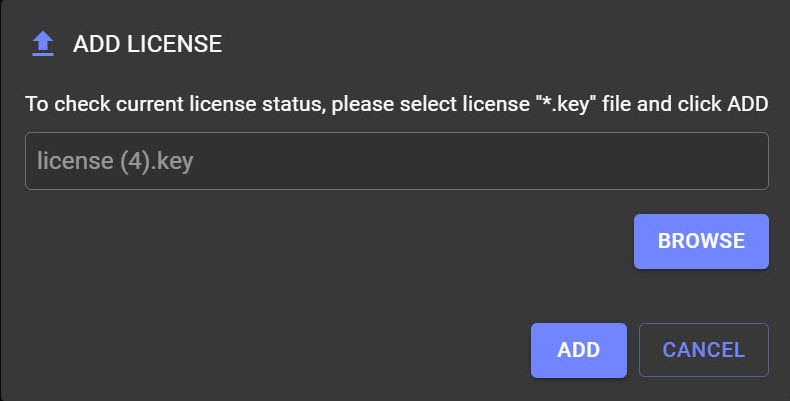
- Click ADD.
As a result, all modules of the selected license will appear on the main page.
Downloading a license
From the License Server web interface, you can download a .zip archive that includes:
- The certificate;
- The private key;
- The server key.
To download the archive, click the DOWNLOAD LICENSE button  .
.
Overview
Content Tools