
Go to documentation repository


Page History
| Tip |
|---|
| Listening on the Client to sound from a camera microphone |
If a microphone is a part of an IP server, you must specify the camera to which it is matched in the parameters of this microphone. When you do this, the Microphone object becomes a child of the specified Camera object.
...
To configure the Microphone object, do the following:
- Go to the
- the Devices tab
- tab.
- Select the Microphone object in the object tree. If necessary, you can change the values of the parameters that are listed in the table:
Parameter Value Description Other Enable Yes By default, the microphone is disabled. To enable it, select select Yes No Name Microphone If necessary, enter the microphone name Audio codec RAW Select the codec used to compress the audio stream Volume High level Select the volume level of the audio device Low level Camera Camera 1.Camera From the drop-down list, select the select the camera with which you want to bind the microphone. As a result, the microphone becomes a child of the selected camera - Click the Apply
 button.
To check the operation of the microphone, do the following:
- Go to the layout with the required camera and activated microphone
- In the upper left corner of the preview window, left-click the speaker icon
 .
. - Send an audio signal to the microphone.
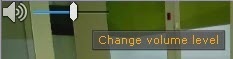
- If the microphone is configured correctly, the audio signal is transmitted to the server speakers. To change the volume level, use the slider.
Checking the microphone operation is complete.
Overview
Content Tools