
Go to documentation repository


Page History
...
The disabled Camera object is indicated with a cross mark.


Configuration of video subsystem with disabled video channels is complete.
...
- video stream frame rate (FPS);
- size of the displayed frame in bytes (the parameter can be used, for example, to understand whether the displayed frame is a reference frame or to calculate the average bitrate);
- video stream resolution in pixels.

Note that this information window displays initial data about the video stream from the camera or from the archive transmitted to the Video surveillance monitor. The actual displayed frame rate of the video stream can be different, see Displaying information about a video stream on top of a video.
...
- Go to the Hardware tab in the System settings box (1).
- Select the relevant Video Capture Device object, created before, in the Hardware tab in the objects tree (2). The settings panel for the selected object is displayed in the right part of the Hardware tab.

- If it is necessary to increase the total frame rate up to the maximum allowed value, move the Rate slider to the Max position (3).
- If it is necessary to reduce the total frame rate to the minimum allowed value, move the Rate slider to the Min position. The minimum total frame rate of video signals, digitized and processed by selected ADC, is 3 times lower than the maximum allowed one.
- If it is necessary to return the default decimation settings, move the Rate slider to the middle position. The default total frame rate is 2 times lower than the maximum allowed one.
- Click the Apply button (4).
- Close the System settings box and restart Axxon PSIM.
...
Initial data. The card has 4 ADCs. They are matched to 4 Video capture device objects in the objects tree. The video capture card may have up to 16 cameras connected to it. 8 cameras are actually connected to the video capture card. The objects matched to the remaining 8 cameras are disabled. Each of two ADCs, matched to the Video capture device 1 and Video capture device 2 objects, is configured to digitize the signals from 4 cameras. The ADCs matched to the Video capture device 3 and Video capture device 4 objects aren't configured to digitize signals from any cameras. An example of the objects tree is given in figure A:


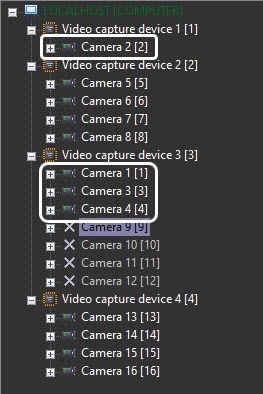
A. Initial data B. Result
...
Initial data. The card has 4 ADCs. They are matched to 4 Video capture devices objects in the objects tree. The video capture card may have up to 16 cameras connected to it. 12 cameras are actually connected to the video capture card. The objects matched to the remaining 4 cameras are disabled. Each of 3 ADCs, matched to the Video capture device 1, Video capture device 2 and Video capture device 4 objects, is configured to digitize the signals from 4 cameras. The ADC, matched to the Video capture device 3 object, is not configured to digitize the signals from any camera. An example of the objects tree is given in figure A.

A. Initial data B. Result
...
- Go to the Hardware tab in the System settings box.
- Select the Camera object, created before, corresponding to the camera, ADC video processing queue of which is to be changed, in the Hardware tab in the objects tree.
- Go to the Advanced settings tab on the settings panel of the Camera object.
- Set the processing slider in the Priority group to the position:
- 1/2 to queue the camera with 1/2 priority for ADC video processing.
- 1/3 to queue the camera with 1/3 priority for ADC video processing.
- Normal (default), if it is necessary to return the camera into the normal queue for ADC video processing.
- 1/2 to queue the camera with 1/2 priority for ADC video processing.
- Click the Apply button.
...
Overview
Content Tools