
Go to documentation repository


Page History
...
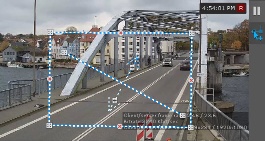
- Set the area in which objects will be detected by moving the nodes
 . By default, the entire frame is the detection area.
 - Set the virtual line:
- Specify the end points of the line :

Action Result Hover the cursor over the end point and, holding down the left mouse button, move the mouse Moving the end point of a line Hover the cursor over the line and, holding down the left mouse button, move the mouse Moving the line - By default, both directions of object movement through the line are detected. To stop the detection in the required direction, click the
 button corresponding to this direction.
Note title Attention! - You must select at least one direction for detection.
- An unmonitored direction of object movement is indicated by a dimmed arrow.

Info title Note - The end points are connected by a two-color dashed line. The directions of object movement through the line are indicated by dotted arrows.
- For convenience of configuration, you can "freeze" the frame. Click the
 button. To cancel the action, click this button again.
 - To hide the virtual line and detection area, click the the
 button. To cancel the action, click this button again.
- Specify the end points of the line
- Click Apply
 .
.
...
Overview
Content Tools