
Go to documentation repository


Page History
...
To save the parameters of the detection tool, click the Apply 
 button. To cancel the changes, click the Cancel
 button.
The Line crossing VI detector is configured.
...
- In the preview window:
- Specify the end points of the line
 :
:

Action Result Hover the cursor over the end point and, holding down the left mouse button, move the mouse Moving the end point of a line Hover the cursor over the line and, holding down the left mouse button, move the mouse Moving the line - By default, both directions of object movement through the line are detected. To stop the detection in the required direction, click the
 button corresponding to this direction.
Note title Attention! - You must select at least one direction for detection.
- An unmonitored direction of object movement is indicated by a dimmed arrow.

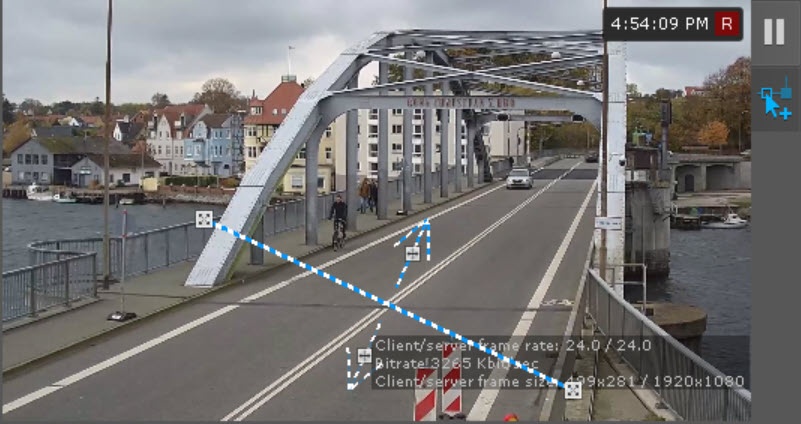
- Specify the end points of the line
- If necessary, you can add additional virtual lines at any location in the preview window.
Info title Note - Additional virtual lines are created single-directional by default. To enable the second direction, click the button next to the corresponding direction line.
- The end points are connected by a two-color dashed line. The directions of object movement through the line are indicated by dotted arrows.
- For convenience of configuration, you can "freeze" the frame. Click the
 button. To cancel the action, click this button again.
 - To hide the virtual line, click the

 button. To cancel the action, click this button again.
 - To delete a virtual line, click the
 button.
- Additional virtual lines are created single-directional by default. To enable the second direction, click the
- Click Apply .
The virtual line configuration is complete.
Overview
Content Tools