
Go to documentation repository


Page History
| Section | |||||||||||||||||||||
|---|---|---|---|---|---|---|---|---|---|---|---|---|---|---|---|---|---|---|---|---|---|
|
...
You can add IP devices to the system using the IP Device Discovery Wizard. To open the IP Device Discovery Wizard, click the Add device link at the end of the Server server device list.
The IP Device Discovery Wizard interface includes:
- Automatic device search.
- Manual entry of device data.
- Adding devices to the configuration.
- Bulk adding devices using .CSV files (see Bulk creation of IP devices).
Automatic search for IP devices
...

To stop device search at any time, click the Stop button.
The search results are color-coded based marked by different colors depending on the status of the found device.
Camera color | Description |
|---|---|
| Fully supported device |
| Manual configuration required |
| Axxon One compatibility not Device operation in Axxon One isn't guaranteed |


| Info | ||
|---|---|---|
| ||
|
Filtering IP device search results
...
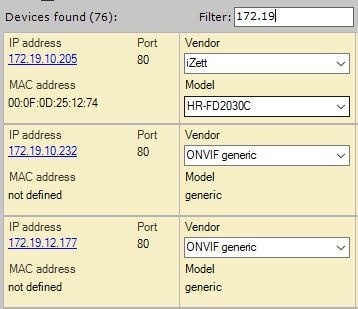
- By status. To hide devices with a certain status in the search results, deselect the relevant checkboxcorresponding checkboxes.

- By vendor, model or
- , and IP address. To do this, use the Filter field. For example, this filters
- filter shows amid the search results of the Sony devices
- device the name of the model that contains the SNC label and whose IP address contains 172.
 In addition
 - With a filter, you can filter
- search for cameras from
- in a certain subnet.
Manual input of device data
If an the IP device is not shown absent in the automatic search results (because it is located on a different subnet or the connection with it is temporarily lost), you can add it manually. To do this, you need to select the type of the added IP device to be added, specify the IP address and connection port of the device, and select the vendor and model in the area with a neutral background located under the list with automatic search results.


You can also specify the vendor and model of the device by using the search in the input field.
If the device's IP address, Port, Vendor, Username and Password are set for a device, the device model can be automatically detected by clicking the 
 button.


Adding devices to the configuration
To add an The algorithm of adding the IP device to a the configuration is the following:
- select a mode for adding the a device to the configuration;
- specify the device settings, if necessary;
- the add a device is added to the configuration.
Modes for adding devices to the configuration
Three modes are available for There are three modes of adding a device to a the configuration. These are described Their description is given in the following table.
Device addition mode | Description | |
|---|---|---|
| 1 | Keep current settings | The IP device is added to the configuration with the current settings , as that are specified in the web interface |
| 2 | Start with default settings | The IP device is added to the configuration with the default settings (the default settings that are determined by as default in Axxon One). Adding When you add a device in this mode, it changes the current device settings of the device specified in the web interface |
| 3 | Start with parameters | The IP device is added to the configuration with the settings that have been previously specified for a device of the same model in the configuration. Select a device of the same model (the "The template device ") in from the corresponding list is selected.
|
Configuring IP device settings
When adding you add a device to the configurations, you can immediately set several configuration optionsparameters, such as:
vendor and model.,
- login and connection password.,
ID and object name.,
Info title Note - The object ID can contain numbers, Latin letters, and the "_" sign. Once the device is created, its short name will match the specified ID (
- see Camera). In this case:
- The camera ID cannot be changed, since it is used to maintain the connection with the archive
when replacing - if you replace the camera (
see - see Saving the archive when replacing the video signal device).
- The short name can be changed, and the added devices will be sorted in the object tree in ascending order of this field (
see - see Camera).
- select an archive selection and set the recording parameters (see Configuring recording to an archive):
- No
- —camera is linked to the archive, no recording
- ;
- Always—continuous recording
- ;
- On motion
- (selected by default)
- —either the embedded motion
- detector (see General information about embedded detectors), or the Axxon One
- motion detector (see Configuring the Motion detector)
- will be automatically created
- for the added camera. Also, the automatic rule
- for recording to the specified archive (
- see Automatic rules) will be created. By default, recording stops when an event from the
- detector is no longer generated.
Info title Note - When
- you create a
- device, the pre-alarm time interval for
- archive recording is automatically set to 3 seconds (see Configuring recording to an archive).
- The embedded motion
- detector is created automatically only for certain camera models.
- The information about the support for the embedded motion
- detector is given in the list of supported devices
- in the Analytics column. The embedded motion
- detector is configured through the web interface of a specific camera. In other cases,
- the Axxon One motion detectoris created.
- device location coordinates in the format
- 53.212558; 50.204991 format (coordinates are used when adding
- you add a camera to the map, see
- see Adding video cameras).
Adding devices
During a single configuration changeone operation, you can add a single one device or all devices listed in from the search results (other than devices for which compatibility is not to the configuration (except those for which operation isn't guaranteed). To add one device, click the  button. To add all devices, click the Add all button.
| Info | ||
|---|---|---|
| ||
If Keep in mind that when you add all IP devices at the same time, the same addition mode and settings will be applied to used for all of them. |
To remove a device from the search results, click the 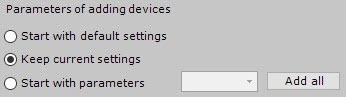
 button.
If you don't set no individual access parameters to the devices while adding hardwarethem, a dialog the window appears for setting the unified access parameters will be displayed.
Next, the a device is added to the configuration.
...
To remove IP devices, select one or more objects in the hardware device tree by left-clicking (while holding down the Ctrl key) and click the Delete button.
...
Overview
Content Tools