Versions Compared

Key

  • This line was added.
  • This line was removed.
  • Formatting was changed.

...

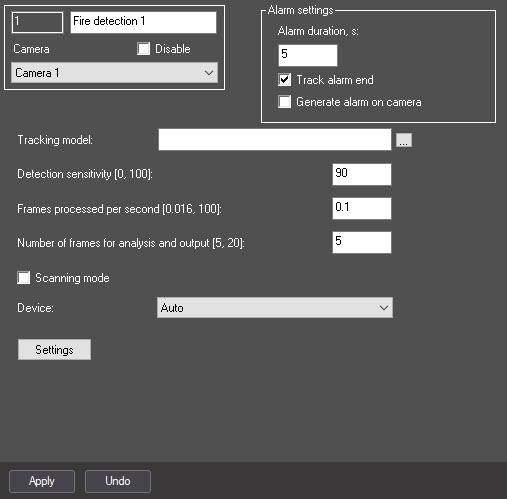
  1. Go to the settings panel of the appropriate module.
  2. To receive events about the end of fire/smoke after the time period specified in the Alarm duration, sec parameter, set the Track alarm end checkbox. By default, the checkbox is clear, which means that events about the end of fire/smoke are received immediately.
  3. In the Alarm duration, sec field, enter the time period in seconds during which the repeated fire/smoke alarm events are ignored.
    Info
    titleNote

    The events about the end of fire/smoke are received after the time specified in the Alarm duration, sec parameter has expired. During this time, all repeated fire/smoke alarm events are ignored. A new fire/smoke event is received immediately after the current alarm has completed.

  4. Set the Generate alarm on camera checkbox if it is necessary to initiate an alarm on the camera when a the detector is triggered.
  5. By default, the standard (default) neural network is initialized according to the device selected in the Device drop-down list. The standard neural networks for different types of processors are selected automatically. If a custom neural network is prepared for use, in the Tracking model field, click the button, and select the file in the standard Windows Explorer window that opens.
  6. In the Detection sensitivity [0, 100] field, enter the sensitivity of the detector—an integer value in the range from 0 to 100. This parameter determines at what certainty of fire/smoke detection the detector will triggergenerate an alarm: the higher the sensitivity, the higher the recognition threshold. For example, at sensitivity 100, the detector neural network must get 100% certainty for some period of time when processing the frames. The value of the Detection sensitivity field is determined experimentally.

  7. In the Frames processed per second [0.016, 100] field, set the number of frames per second that will be processed by the neural network. This value affects the processor load: the higher the value, the greater the load. It also affects the operation speed of the algorithm: the higher the frame rate, the faster the required number of frames are collected for making a decision and triggering generating an alarm, if required.
  8. In the Number of frames for analysis and output [5, 20] field, enter the minimum number of frames in the range 520 for the detector to analyze before triggeringgenerating an alarm. The higher the value, the more reliable the result of the detector operation. At the same time, if the value is too high, the short-time fire/smoke can be missed. If you enter a value less than the minimum, the value is set to 5.

    Info
    titleNote

    Multiplication of Alarm duration, sec and Number of frames for analysis and output [5, 20] values is the time period (in seconds) after which the alarm is generated after the fire/smoke detection.

  9. Set the Scanning mode checkbox to track small objects. If you enable this mode, the load on the system increases. So we recommend specifying a small number of frames processed per second in the Frames processed per second [0.016, 100] field. By default, the checkbox is clear. For more information on the scanning mode, see Configuring the Scanning mode.
    Info
    titleNote

    You cannot configure the scanning windows for the Fire detection and Smoke detection modules. The default parameters are used.

    When you use scanning mode, we recommend using a full frame without specifying the area of interest in step 11.

  10. From the Device drop-down list, select the device on which the neural network will operate: CPU, one of NVIDIA GPUs, or one of Intel GPUs. Auto (default value)—the device is selected automatically: NVIDIA GPU gets the highest priority, followed by Intel GPU, then CPU.
    Note
    titleAttention!
    1. We recommend using the GPU.
    2. It can take several minutes to launch the algorithm on NVIDIA GPU after you apply the settings. You can use caching to speed up future launches (see Optimizing the operation of neural analytics on GPU).
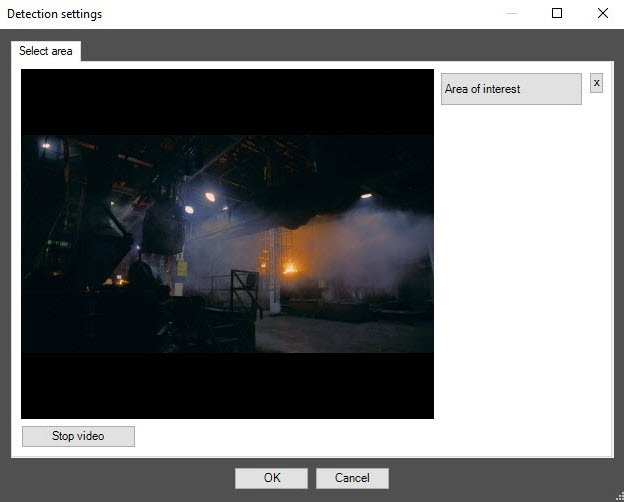
  11. Specify the area of interest on the video image:
    1. Click the Stop video button to capture the video image.
    2. Click the Area of interest button.
    3. On the captured video image, set the anchor points of the area, the situation in which you want to analyze, by sequentially clicking the left mouse button. After you add an area, the rest of the video image is darkened. If you don't specify the area of interest, the entire frame is analyzed.
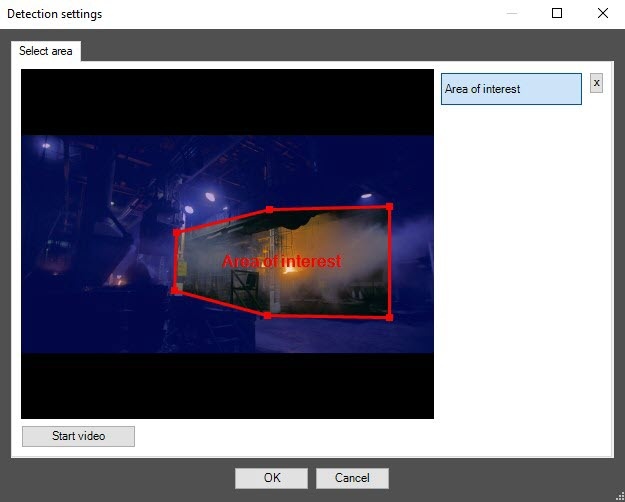
    4. Click the OK button.

      Info
      titleNote
      • To remove the area, click the button next to the Area of interest button.
      • You can add only one area. If you try to add a second area, the first area will be deleted.
  12. Click the Apply button.

...