
Go to documentation repository


Page History
...
| Section | |||||||||||||||||||||
|---|---|---|---|---|---|---|---|---|---|---|---|---|---|---|---|---|---|---|---|---|---|
|
Software startup
Before you start Axxon PSIM, make sure that the communication environment, used video cameras, microphones, and other devices are ready for operation.
| Info | ||
|---|---|---|
| ||
If the path to the psim.sec key file was not isn't specified during the installation, it is necessary to put you must transfer psim.sec into the Axxon PSIM software root directory. If the key file is missing, Axxon PSIM will operate operates in demo mode. |
The You can start Axxon PSIM system can be started in the following ways:
- Automatically. The software
- Axxon PSIM starts automatically , immediately
- right after the operating system is loaded.
- Manually. Axxon PSIM can be launched from theStart menu: Start → All programs → Axxon PSIM.
To launch - start the Server
- server configuration, click the Axxon PSIM menu item, and for the Client
- client configuration, click the Client Workstation
- workstation item.
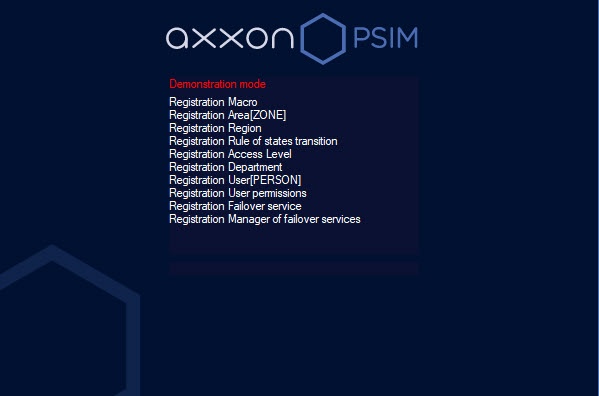
The startup window will be displayedscreen displays the dialog window containing the information messages about the startup of Axxon PSIM.
| Info | ||
|---|---|---|
| ||
The list of objects that exceed the limit of the license key is displayed in the Axxon PSIM dialog window as well as in the psim.log and PSIM uninstall.log log files. If there is no license key and and Axxon PSIM is started in demo mode, then the the Demonstration mode message is displayed in the startup window. |
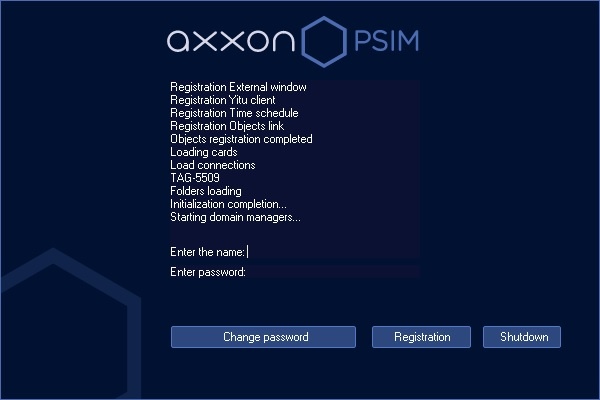
If you implement user rights restrictions were implemented during software the configuration of Axxon PSIM, then a password will be is requested from a user during at the software startup. Enter After you enter the password and , click the the Registration button.
| Info | ||
|---|---|---|
| ||
The number of password entry attempts is limited. If the password is entered incorrectly three times, the next login attempt can be made after 60 seconds. |
If you use Windows authentication is used credentials for authorization, login and password input is not necessaryentry isn't required. To start the Axxon PSIM software , just click the Registration button. In this case, leave the Login and Password fields should be left blank in this case.
| Info | ||
|---|---|---|
| ||
There are three types of user rights in Axxon PSIM: for administration, control, and monitoring. |
Confirmation by supervisor
Authorization by four-eyes rule
In case the
...
four-eyes rule authorization is configured in the system, then when you log into the system, the login must be confirmed by the other user—supervisor. After
...
you click the Registration button, you
...
are prompted to enter the login and password of the supervisor. After
...
you enter the supervisor password, click the Registration button again.
Password change at login
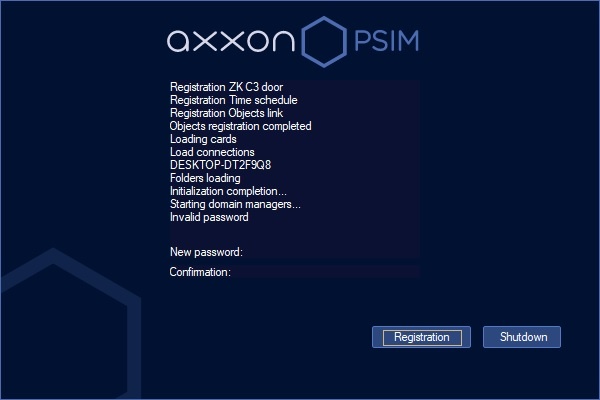
You may need to change your password if Axxon PSIM is configured accordingly. This can happen the first time the user logs in , or when the current password expires. In this case, after clicking you click the Registration button, you will be are prompted to enter and confirm a the new password.
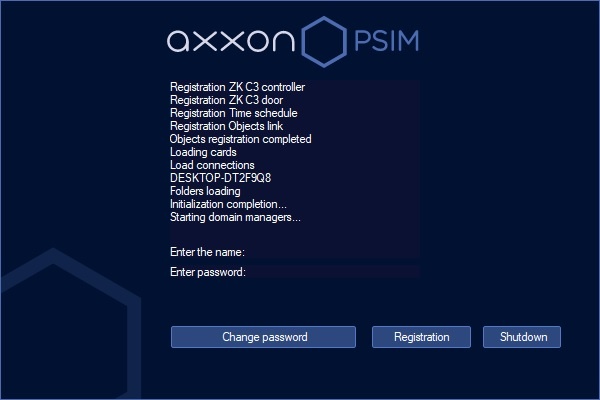
The password can be changed by the user request if Axxon PSIM is the system is configured accordingly. In this case, click the Change password button and then enter and confirm a the new password.
| Info | ||
|---|---|---|
| ||
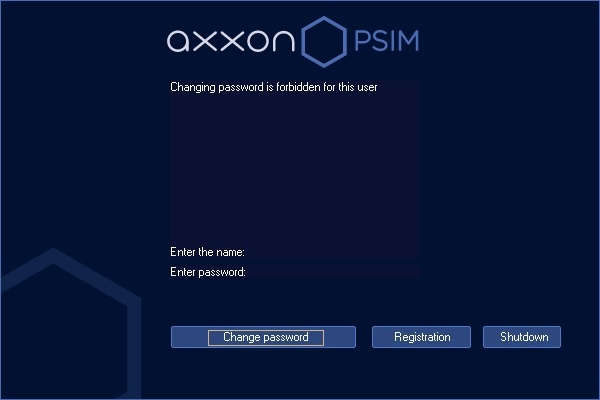
If the user is prohibited from changing the password on demand, a the corresponding message will be is displayed in the dialog boxwindow. |
| Note | ||
|---|---|---|
| ||
The new password must not match the previous one. |
After you start the Axxon PSIM software and enter the new password, click click the Registration button to start Axxon PSIM.
Two-factor authentication
The In Axxon PSIM, you can configurethe two-factor authentication function can be configured in Axxon PSIM, which requires login with login confirmation by SMS code—see Configuring two-factor authentication. In this case, after entering you enter the login and password and clicking on click the Register Registration button, a the short message with the code will be is sent to the user's phone number. Enter this code in the SMS code box window that opens, and then click the the OK button.
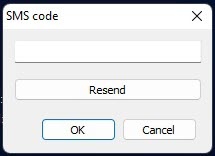
If the message with the code isn't delivered, you can click the the Resend button to send the code again, but not sooner than in 10 seconds after the previous resend.
Shutting down
Shut To shut down the Axxon PSIM software as follows, do the following:
- Point the mouse to the upper right corner of the screen, and the Axxon PSIM Quick Access Toolbar (QAT) will appear
- quick access toolbar appears.
- Click the

- button in the QAT
- quick access toolbar of Axxon PSIM.
- Select the Shutdown menu item.
| Info | ||
|---|---|---|
| ||
The Shutdown menu item is also available in the menu that appears when you left-clicking click the |

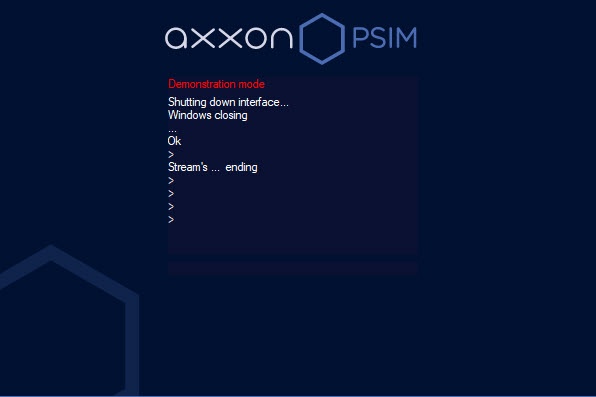
Software shutdown will begin, and a password may be required if Axxon PSIM is configured accordingly. Enter the password and This starts the Axxon PSIM shutdown, and with the appropriate settings, the system can require the password. After you enter the password, click the Shutdown button.
| Info | ||
|---|---|---|
| ||
When shutting If you shut down Axxon PSIM installed in the Client configuration in any way other than described above, particularly when restarting you restart the computer without shutting down Axxon PSIM, the interface window parameters may not be saved. For example, the information about the saved layouts on the Video Surveillance Monitor surveillance monitor may be lost. |
| Info | ||
|---|---|---|
| ||
At certain settings, the Axxon PSIM shutdown can be configured in a way that prohibits shutdownprohibited. In this case, the Shutdown menu item will not be isn't displayed. |
Overview
Content Tools