
Go to documentation repository


Page History
Depending on the customer requirements to for the security system built on Axxon PSIM based security system, you should must configure the Axxon PSIM software objects that represent objects corresponding to the following components of the security system components:
- video Video subsystem;.
- PTZ subsystem (a system for managing pan/tilt/zoom devices and cameras’ lenses);.
- audio Audio subsystem;
- automated video analytics subsystem;
- Subsystem of automatic audio/video data analysis.
- Sensorsensor/relay subsystem;.
- notification Notification subsystem (over via various communication channels);
- data back-up subsystem;
- video/audio network data exchange subsystem;
- user rights management subsystem;
- software performance monitoring subsystem;
- automated control subsystem;
- .
- Backup subsystem.
- Subsystem of audio/video data exchange via the network.
- User rights management subsystem.
- Software performance monitoring subsystem.
- Automated control subsystem.
- User interface user interfaces subsystem.
| Info | ||
|---|---|---|
| ||
The set of objects available Axxon PSIM system objects is defined in for use in Axxon PSIM is predetermined by the psim.sec key file. |
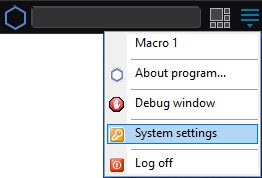
You can configure the Axxon PSIM software objects objects in the System Settings dialog box, which is opened using the Quick Access Toolbar, settings window that you can open using the quick access toolbar from the Windows notification area (system tray) or by briefly pressing the hot F8 key F8.


The System Settings dialog settings window contains the main interface elements:
- The tabs panel;.
- objects The object tree (it is absent in the Architecture tab);.
- The object settings panel tree (it is absent in the Architecture tab);.
- the The Apply and Cancel buttons Undo buttons.
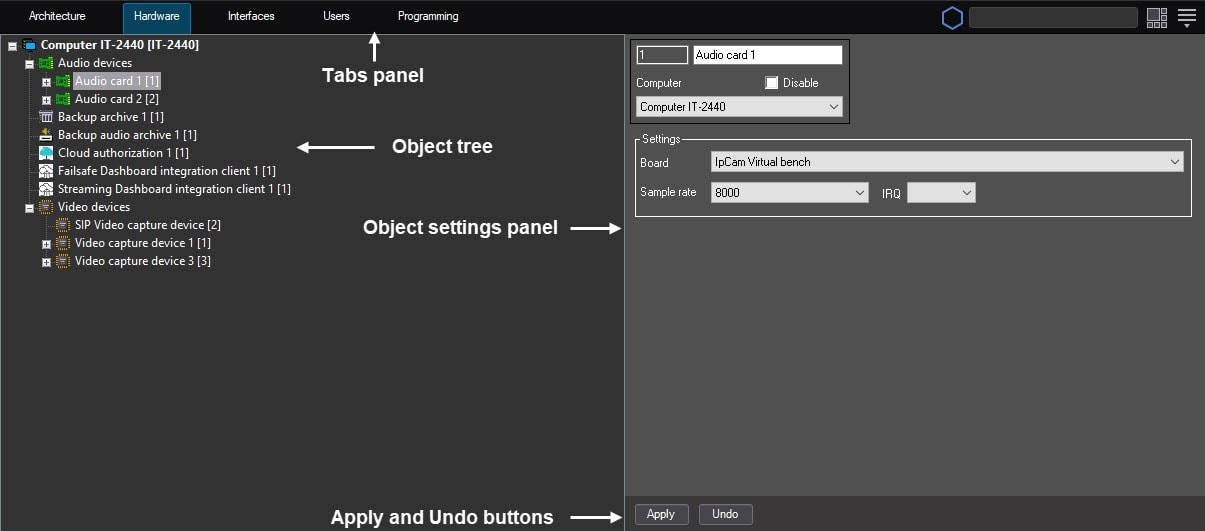
You typically can configure objects as follows: create or select the object required for configuration in the object tree, set parameter values on the object settings panel, and save changes using the Apply button. The Quick start Guide offers a list only provides lists of objects and a brief description of their functionality. For details on configuring objects, see see Administrator's Guide.
Overview
Content Tools