
Go to documentation repository


Page History
Click  When you click the button (Show Inspector Ctrl+I). A , a special area appears. This The upper part of this area contains short information about the selected object.

The lower part contains
...
the Fields tab.
...
The information is shown (according to on the options selected ) as parameters is displayed as columns in the main list of theLog log panel.

To get more For detailed information about an object, select it in the Log the log panel and click the  button (Show details). The Details window opens.

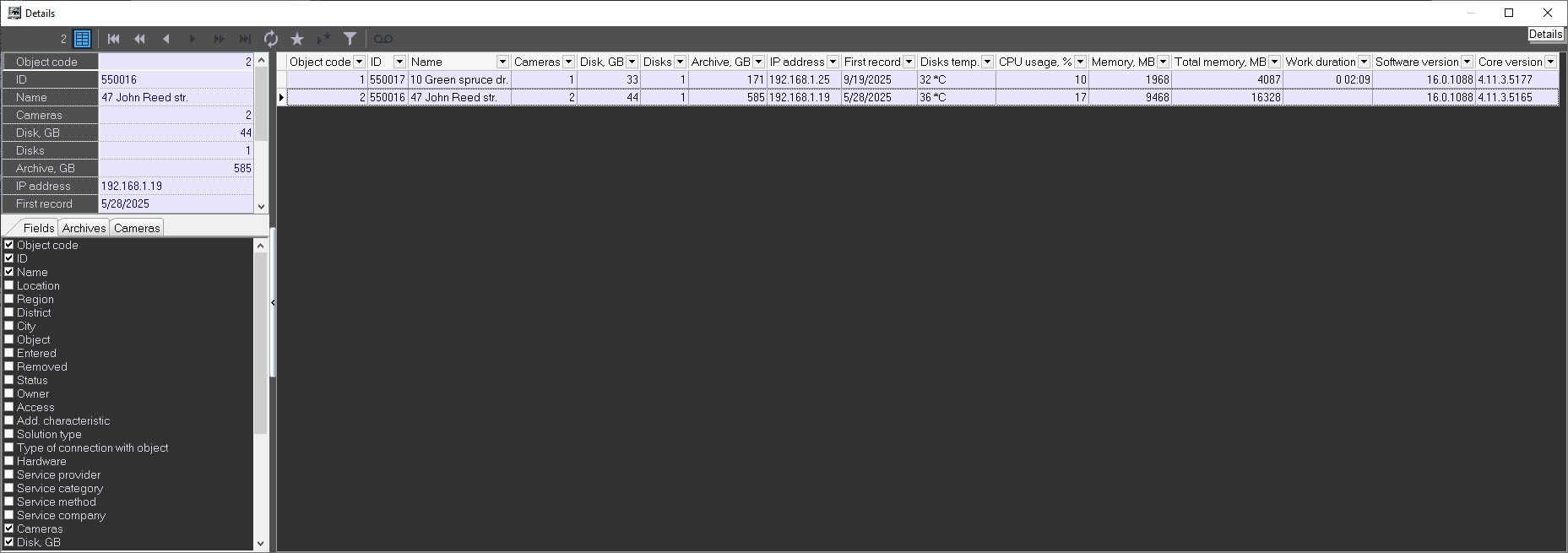
In the Details window, click  When you click the button (Show Inspector Ctrl+I) . A in the Details window, a special area appears. The upper part of this area contains information about the selected object.
| Info | ||
|---|---|---|
| ||
If When you use the Owners owner panel is in use, then , the Details window displays information about only the those objects that belong to the owner selected on in the Owners panel is displayed in the Details windowowner panel. To view the details detailed information about all objects in the system objects, call open this window on the Owners panel – see from the owner panel—see Viewing details on alarms for all system objects. |
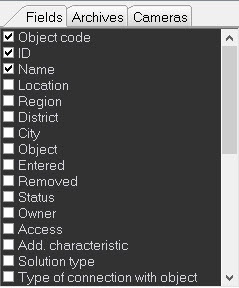
The lower part of the area contains three tabs: Fields, Archives, and Cameras. The information is shown (according to the options selected) Information on the selected parameters is displayed as columns in the main list of the Details window.
The Archives and Cameras tabs.


The data in the Cameras, Disk, GB, Disks, and Archive, GB, and Software version fields and in all the fields in the the Archives and Cameras tabs are filled in automatically when packets with technical information are received from the objects. If these fields are empty for an object, it means that the object has never connected yet.
The Cameras field shows displays the number of cameras for the object.
The Disk, GB field shows the maximum field displays the total amount of free space for in GB of all the logical disks where recording is performedon which the video archive is recorded.
The Disks field shows displays the number of logical disks where recording is performedon which the video archive is recorded.
The Archive, GB field displays the total size in GB allocated for the archive.
The Software version field shows displays the version of of the Agent of Control installed installed at the sitefacility.
The fields in the Archives tab show display the current depth of the video archive in days for each camera.
...
The fields in the Cameras tab show display the current status of each camera (on/off).
The IP address field displays the IP address of the object.
The First record field shows displays the date of the very first entry in the video archive from all cameras.
Field The Disks temp. shows field displays the temperature of the hard drives disks separated by a comma if there are several disks.
The CPU usage,% field shows displays the CPU load as a percentage (updated every 15 minutes).
| Info | ||
|---|---|---|
| ||
Starting with Windows 8, the calculation of CPU load in the task manager Task Manager has changed, so corresponding changes have also been made to the Agent of Control:
|
The Memory, MB field shows displays the amount of available physical memory in MB.
The Work duration field shows displays the time of continuous operation of the psim.exe\psim64.exe process on the object in the format "d hh:mm",
where "d" - is a day, "hh" - is hours, and "mm" - is minutes.
The Total memory, MB field shows displays the total size of physical memory in MB.
The Core version field shows displays the base Axxon PSIM version at the sitefacility.
Click When you click the button  button (Show characteristics of devices). A , a special area appears. There you can see changes for these values in the values of the fields described above (Cameras, Disk, GB, Disks, Archive, GB,Software version version,and others).

Overview
Content Tools