
Go to documentation repository


Page History
...
The Map editor utility is used to configure the display of attached objects added to on the map layers.
| Info | ||
|---|---|---|
| ||
To open the Map editor utility, click the Edit layer button on the settings panel of the Layer object (see Creating the layers of the interactive map). |
For The following actions are applied to any of the described operations, you can:
- Configure To configure several objects at once. To do this, you must select them on the layer by holding down the Ctrl key on the keyboard (exception—the Object position operation).
- In the drop-down menus of the utility settings (File, Edit, View, and so on), you can select operations using the keyboard letters that the operation name begins with. For example, if you select an object on a layer, click Operations with objects and press D on the keyboard, the object will be is deleted (the Delete object operation that is in this menu).
Operations with the objects
...
attached to the layer
The Map editor utility toolbar:
...
Possible operations with the objects added attached to the layer.
Description of operation | Operation call | Note | ||
In the Operations with objects main menu | In the context menu | On the toolbar | ||
Deletes the selected object | Delete object | Delete | The 1 button | The Del keyhotkey |
Copies the selected object. The copy is placed above the original | Copy object | Make a copy | The 2 button | The Ctrl+C keyboard shortcuthotkey |
Edits the additional data and type of the icon display for the selected object | Edit object | Edit | The 3 button | The Edit object dialog window will openopens |
Sets the display of the selected objects on the Map map only in alarmed alarm state (when there is no alarm, the objects are hidden) | Hide the selected | Hide- | NA | -NA |
Cancels the hiding of the selected objects | Show the selected | Unhide- | NA | -NA |
Edits the font for the selected object name | Set the font- | NA | -NA | The standard Windows Font dialog window will openopens |
Restores the deleted name of the selected object | Restores the title object | -NA- | NA | -NA |
Edits the size of the selected object | Objects size | -NA- | NA | The Object size dialog size window will openopens |
Edits the position of the selected object | Object position | Object position- | NA | The Object position dialog window will openopens. You can also change the position of an object by dragging it on the layer with the mouse |
Selects the objects of one group | -NA | Select all similar- | NA | Example: all Camera objects are selected |
Selects all the identical objects within a group | -NA | Select all identical- | NA | Example: all Sensor objects of the Gerkon type are selected |
Editing the additional data and type of the icon display
Edit To edit the additional data and type of the object icon display as follows, do the following:
- Select the required object. As a result, the green-pointed frame will appear appears around the image.
- Call for the Open the Edit object dialog window in window in one of the three ways:
- In the main menu , select Operations with objects → Edit object;.
- Click the
 button button on the toolbar;.
 - Select the Select Edit command in the context menu of an object.

- The type of the selected object is automatically displayed in the Object Object type field (1).
- The ID of the selected object is automatically displayed in theIdentifier field (2).
If necessary, you can change the type of the object icon display with the help of the using the Type of display switch (3).
The Type of display switch position
Type of object icon display
Note
Image
Schematic object image
Basic configuration objects, SCADA objects
Image and indicator
Schematic image and identifier indicator of the object state
SCADA objects
Text
Object name and text set on the Properties panel or by script (see Editing object properties using the Properties panel or Examples of scripts in the JScript language)
SCADA objects
Line
Object display in the form of a straight line
SCADA objects
Polygon Object display in the form of a polygon Basic configuration objects, SCADA objects Ellipsis Object display in the form of an ellipsis Basic configuration objects, SCADA objects Info title Note Line object transformed to text will no longer be When you convert a line to the text, the object is no longer displayed on the Map, ifmap if you don't set the Text info property is empty for it (see see Editing object properties using the Properties panel).
- If necessary, change the object additional data about an object in the Comment field (4).
- To save the changes, click the OK button (5).
Editing the additional data and type of the object icon display is completedcomplete.
Editing the font, color, and background
...
of the object name
Edit To edit the font, color, and background or frame size of object name as followsthe object nam, do the following:
- Select the required object. As a result, the green-pointed frame will appear appears around the image.
- Open the Properties panel (see Editing object properties using the Properties panel).

- Set the x and y coordinates coordinates of the left upper corner angle of the text frame, as well as the frame height and width (w and h) and the icon's clockwise rotation rotation Angle (1).
- In the Color field (2), select set the font color of the object name (2).
- In the Background color field (3), select set the background color of the object name (3).
- Click When you click the ... button in the Font field (4). The standard Windows Font , the Font Windows standard dialog window will openopens. You can also open this window by selecting it from the main menu: Operations with objects → Set the fontin the main menu.

- In the opened window that pens, set the font parameters of and the font or object name color.
- Click the OK button to save the changes.
Editing the font, color or and background of the object name is complete.
Editing the object size
Edit To edit the object size as follows, do the following:
- Select the required object. As a result, the green-pointed frame will appear appears around the image.
- In the main menu, select Open the Objects size window in the Operations with objects → Objects size main menu.
Specify the size of the object icon in pixels: in the width (icon width1) and height (icon height2) fields (1, 2).

Info title Note If you enter the 0 value in the width and height fields, the object icon will be is displayed in the original size.
Click the OK button to save the changes (3).
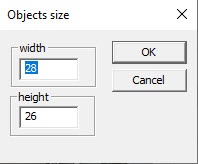
Editing the object size is complete.
Editing the position of object
Using
...
the
...
Position of object
...
window
- Select the object, the position of which you want to edit.
- Call for the Open the Position of object dialog window in window in one of two ways:
- In the main menu , select Operations with objects → Position of object;.
- In the context menu, select Position of object.
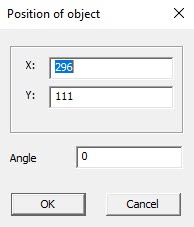
Set the coordinates of the object center: the X (horizontal indent from the left border of the graphic plan
, 1) and Z ) and the Y (horizontal indent from the
bottom upper border of the graphic plan
, 2) fields.

Info title Note The In Meters switch position is relevant when if you set the real parameters of the protected facility are set, object to which this the given layer corresponds (see Creating the layers of the interactive map). - Enter In the Angle field, enter the angle in degrees of the object image turn in the Angle fielddegrees. The angle is set counted counterclockwise from the contour line (3)horizontal.
- To save the changes, click the OK button (4).
| Info | ||
|---|---|---|
| ||
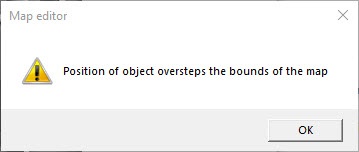
If at least one coordinate oversteps the bounds of the map, the message window will be graphic plan, the Position of object oversteps the bounds of the map message window is displayed. Click the the OK button, and then repeat step 3.
|
Editing the object position with the help of the using the Position of object window is completedcomplete.
Using the mouse
You can move an object on across the map by clicking it and holding down the mouse button.
...
- Click it, green-pointed frame will appear appears around the image.
- Point the mouse cursor to one of the corner dots. A The circular arrow will appear appears instead of the cursor.
- Hold down the left mouse button and rotate the icon to the required angle.
...
You can also change the coordinates, rotation angle and the icon size of the Line, Image, Image and indicatorand , Text object types using the Properties panel in the following way:
- Open the Properties panel of the required object (see Editing object properties using the Properties panel).
- Expand Open the Position and Size settings group. For the Line icon icon type, specify the coordinates of the initial point (x0, y0) and end point (x1, y1) of the line in this group.


For other icons, specify the coordinates of the upper left corner (x, y), width (w) and height (h).

- To rotate the icon, specify the rotation angle in degrees in the Angle field.


Editing the object position using the Properties panel is complete.
...
Editing the camera
...
angle display
To display the camera angle on the map, do the following:
- Select the required object. As a result, the green-pointed frame will appear appears around the image.
- Open the Properties panel for the required object (see Editing object properties using the Properties panel) and expand the PTZ settings group.

- Set the required field values:
- Angle on map—the direction of the display vector on the map. A The 0 value of 0 is the actual camera position of the camera at the time of setting when you set the parameters.
- Telemetry deflection from zero—the actual offset of the camera.
- Viewing angle—the angle of the view display vector.
- Viewing distance—the size of the the view display vector.
- Color—the color of the view display vector.
- Nontransparency—the transparency of the view display vector.
- Invert pan—select True from the drop-down list if it is necessary you want to invert the camera rotation.
Changing Editing the camera angle display is complete.
Editing the picture properties (image, image and indicator)
To edit the properties of the object icon added to the map as an image, image and indicator, do the following:
- Select the required object. As a result, the green-pointed frame appears around the image.
- Open the Properties panel for the required object (see Editing object properties using the Properties panel).

- Select the anchor point from the Anchor point drop-down list:
- Central:
- Top left.
- Top middle.
- Top right.
- Bottom right.
- Bottom middle.
- Bottom left.
- Middle left.
- Enter the maximum value of the picture scaling in the Maximum scaling % field.
Editing the picture properties is complete.
Editing color and transparency (line, polygon
...
or ellipsis)
Edit To edit the color and transparency of objects the object icon added to the map as polygons and ellipsis as follows:a line, polygon or ellipsis, do the following:
- Select the required object. As a result, the green-pointed frame appears around the image.
- Open the Properties panel of the required object Open the Properties panel (see Editing object properties using the Properties panel).

- From the drop-down list (1), select the fill color of the line, polygon or ellipsis (1).
- Set the degree of transparency of the line, polygon or ellipsis in the normal state (2). The smaller lower the number, the higher the degree of transparency. 0 corresponds to full transparency, 255—full opacitynontransparency.
- From the drop-down list (3), select the fill color of the line, polygon or ellipsis in case of alarm (3)if alarm event occurs.
- Set the degree of transparency of the line, polygon or ellipsis transparency in the alarm state (4). The smaller lower the number, the higher the degree of transparency. 0 corresponds to full transparency, 255—full opacitynontransparency.
- If you want to hide the frame of restricting the polygon must be hidden, then set the value to to 1 in the Hide frame field (5).
...
- Select the required object. As a result, green-pointed frame will appear around the image.
- In the Map editor utility window, select Line → Thickness.


- In the Thickness window, specify the line thickness.


- Click the OK button.
...
- Call the context menu of the object icon by right-clicking and holding down the Ctrl key in the polygon area or on the polyline.

- Select Add apex.
- Select the required position of a new apex and left-click.
- The apex will be added to the polygon or the polyline.

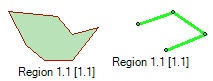
Adding apexes to an object icon in the form of a polygon or polyline is complete.
...
To remove the apex, right-click it holding down the Ctrl key and select Remove apex.
Setting the order of objects display on map
...
- Open the Properties panel of the required object (see Editing object properties using the Properties panel).


- Set the value of the Drawing order parameter. The icons with higher value of this parameter will be displayed over the icons with lower value.
...
- Open the Properties panel for the required object (see Editing object properties using the Properties panel).

- Select the 1 value from the Show states successively drop-down list. To enable their display, select the 0 value from this drop-down list.
...
Overview
Content Tools