
Go to documentation repository


Page History
In Axxon PSIM system allows creating multilevel maps comprised of ,you cancreate multilevel graphic maps, that is, maps with several layers.
In case of multiple layers, the links should be established When you use multilevel maps, you must set the links between the layers. These links help move to other are used to switch to adjacent layers for operative control and (viewing) of the device objects located on themother layers.
The links are created in To configure the links between the layers, use the Map editor utility. To run You can start the Map editor, click utility by clicking the Edit selected layer button in the settings panel of the the Layer object. When you create a link is established, a special symbol appears new link between the layers on the map. Clicking on this symbol takes the operator from the current multilevel map, the graphic icon appears, by clicking which you can switch from this layer to another layer.
| Info | ||
|---|---|---|
| ||
| The graphic link symbols also icons with a layer are also used to notify the operator about alarms coming from devices the Alarm signal that comes from objects located on the linked adjacent layer. |
To create a new link from the current layer to anotherof one layer with another layer, do the following:
- Select Links in Open the Links →Add link with layeritem in the main menu of the Map editor main menu, then select Add link with layer utility.

The Link to layer window panel opens, allowing to choose the layer to link tousing which you can select the adjacent layer.
There is another way of opening the Link to layer windowto open the panel for adding the layer. In the Map editor utility, click anywhere on the layer map. The context menu will open. Select right-click any area of the graphic image plan to open the context menu of layer editing. Select the Add link with layer item from this menulist.
Do the following in the In the Link to layer window:
If the you want to switch to the layer of another map is to be performedlayer, then select the required Map object in from the Link dropdown to: drop-down list (1). If the you want to switch to the layer of the same map is to be performed, then to which the configured layer belongs, select an empty value in the dropdown drop-down list.
Info title Note. The layer of another map is opened in the window of this map box and not in the box window where there is the layer from which the switch is performed from.
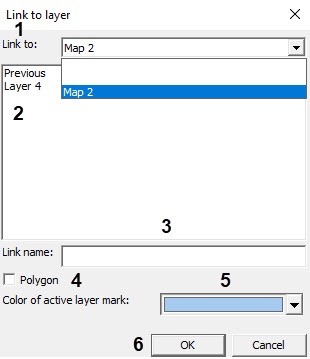
- Select a layer the switch is to be performed to (2).the layer to which you want to switch (2). If you use the link to switch to the previous layer that is displayed in the map window, select Previous. The link with the previous layer is valid only within the map range, that is, when you switch from the layer of one map to the layer of another, then you can switch to the previous layer only when the second map layer opens.
- After you create a layer, you must specify Enter the name for this link in the Link name field (3). If you don't specify the name, then the default one corresponding to the layer name is set.
If you want to display the link on the map is to be displayed as a polygon, set the the Polygon checkbox checked (4).
Info title Note. The You can set the color and shape of the a polygon are set after adding it to the layer. By default, the link is represented by a green hexagon.
- If the selected layer to which the switch will be is performed to, is on another map, then in from the Color of active layer dropdown mark drop-down list, select the color by which the link will be is marked when this layer is active on the its own map (5).
- Click the OK button to create the new link (6).
A symbol will appear As a result, the icon (symbol) appears on the map representing indicating the link. The link icon of on the link map is represented by displayed as a red triangle or as a polygon depending on if the Polygon checkbox was checked is set (see step 2.d):


The feature menu appears when right clicking the polygon holding down the Ctrl key. The following features are availableWhen you right-click the polygon area with the Ctrl key pressed, the functional menu opens with the following available features:

- Add apex– add —add a new apex to the polygon. A new apex appears when selecting this menu item. One is to locate it left clicking on If you select this item, the new apex appears, after which you must set its location by left-clicking the map.
- Properties– display —displays the properties panel of the icon on the right part of the Map editor window. Using this panel one , you can set the color and opacity of the normal and alarm states of the layer icon, as well as configure whether to hide frame limiting the frame hiding that limits the polygon.

By default, the symbol of connection with this layer starts to flash if when an alarm is detected on the link layer, the link icon of this layer starts blinking. If you need an additional indication is required it is possible to configure alarm symbol of connection with , you can configure the alarm link icon with a layer. To do this, place the file link_alarm.bmp file containing some any image characterizing the alarm on the layer to the <Axxon PSIM installation directory>/Bmp file folder. If such a file is in the Bmp folder then symbol of connection with this layer will changed to , then when an alarm occurs on the link layer, the link icon changes to the image from the link_alarm.bmp file and start to flash while alarm on this layerstarts blinking.
| Info | ||
|---|---|---|
| ||
| If the link with the layer is represented by as the polygon, then it starts when an alarm is detected on the layer, the polygon starts periodically changing its color (blinking) when there is an alarm on the layer. |
| Tip |
|---|
Switching between map layers of the Map |
Overview
Content Tools